Note
Access to this page requires authorization. You can try signing in or changing directories.
Access to this page requires authorization. You can try changing directories.
Azure DevOps Services | Azure DevOps Server | Azure DevOps Server 2022
Add parameters to your manual test to repeat the test with different test data. For example, you can test adding different quantities to a shopping cart from quantities of 1, 5, 10, or 200.
Insert parameters within your test steps for a manual test case. Then, provide a table of parameter values. You can add shared parameters to test cases or convert parameters you recently inserted into shared parameters. Shared steps and shared parameters are different work item types that can be shared across multiple test cases. They're linked to test cases through the Test Cases-Shared Steps and Referenced By-References link types as shown in the following illustration.
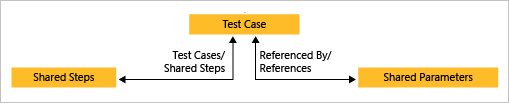
With shared steps and shared parameters, you can run multiple test cases with the same data.
Prerequisites
| Category | Requirements |
|---|---|
| Project access | Project member |
| Access levels | At least Basic access to view test-related work items. Users with Stakeholder access can't access Azure Test Plans. To add test plans and test suites, delete test artifacts, or define test configurations, you need Basic + Test Plans access or a Visual Studio subscription: Enterprise, Test Professional, or MSDN Platforms. |
| Permissions | Area Path: - Edit work items in this node: Add or modify test plans, test suites, test cases, or other test-based work items. - Manage test plans: Modify test plan properties such as build and test settings. - Manage test suites: Create and delete test suites, add and remove test cases from test suites, change test configurations, and move test suites. Project-level: - Manage test configurations and Manage test environments: Manage test configurations or test environments. - Permanently delete work items: Permanently delete test-based work items. |
For more information, see Manual test access and permissions.
Add parameters to a test case
Do the following steps to add parameters to your tests.
Create a parameter by typing a name preceded by "@" in the actions and expected results of your test steps.
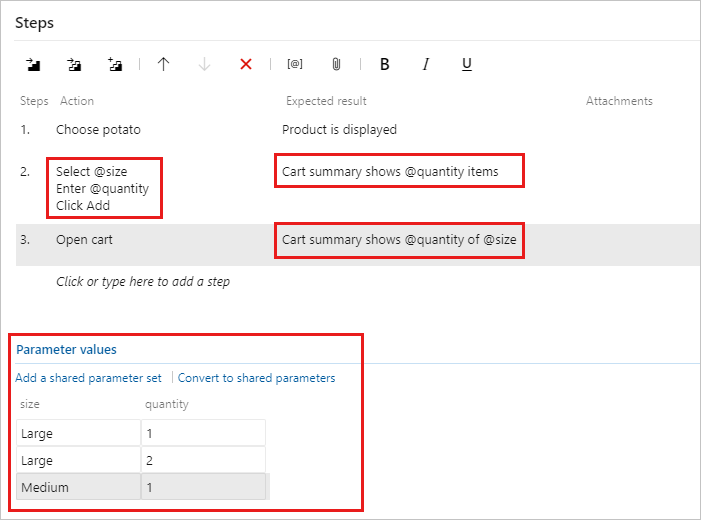
Underneath the list of steps, add combinations of parameter values. You might need to scroll down to see them.
Share parameters between test cases
Do the following steps to convert existing parameters to shared parameters, so you can use them and the associated data in other test cases.
In an open test case, select Convert to shared parameters.
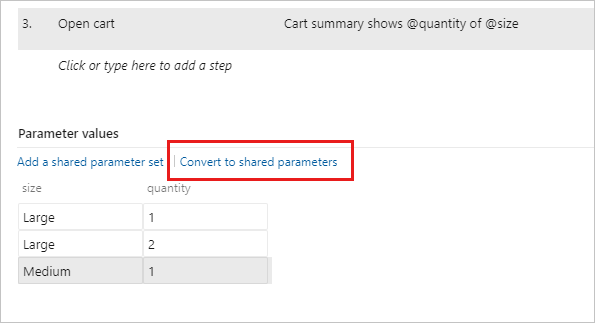
After you create a shared parameter set, open another test case and add the shared parameter set to that test case.
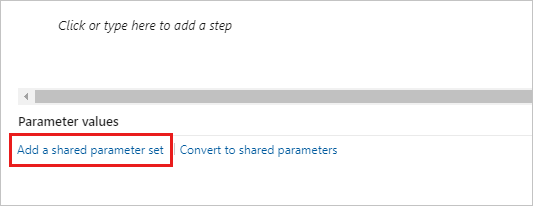
You can search for the shared parameter set by name.
The shared parameter set displays in the Parameter values section after you add it. You can now use these parameters in your test case steps.
If the test case has different parameter names for these shared parameters, map the shared parameters to the local parameters to use the shared parameter data.
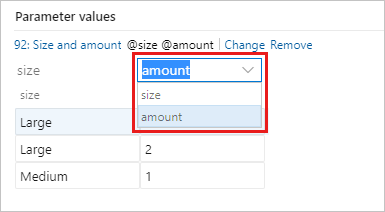
When they're correctly mapped, the data associated with the shared parameter is displayed.
Add, edit, and rename your shared parameter sets in the Parameters page. View the test cases that reference them in the Test cases pane.
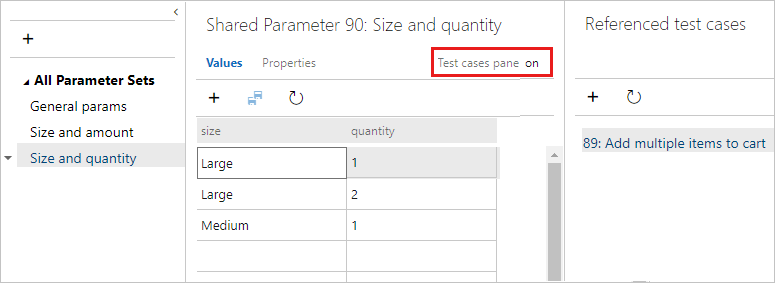
Each shared parameter set is a work item. Open the Properties page to view or make changes to this work item. For example, you can assign owners and track changes.
You can't add more than one shared parameter set to a single test case. If two test cases share similar data, you might consider creating a single shared parameter set, which contains all of the parameters, even though a few of the columns in the set remain unused in each test case. For example, one test case needs customer ID, name, email, and phone, and the second needs customer ID, name and address.
You can import parameter values from an Excel spreadsheet to your shared parameter sets. Paste the values into your shared parameters grid. You can also copy the data from your grid back into Excel.
Run a test case with parameters
Do the following steps to run a test case that uses parameters.
Select a test case with parameters and start running it. The Test Runner shows the first row of parameter values.
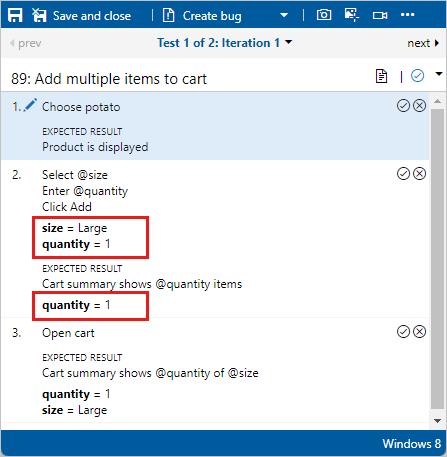
When you complete the steps, mark the test passed or failed. Go on to the next iteration of the test, which uses the next row of parameter values.

Use the menu to navigate to other iterations.

If any of the parameter values are incorrect, fix them without canceling the test by choosing Edit from step's shortcut menu.
Review the test results
The outcome of the test is based on a precedence hierarchy of all the iteration outcomes. The hierarchy order is Paused, Failed, Blocked, Passed, Not Applicable, and Unspecified (Active). For example, if you marked any iteration as failed and all the rest as passed, the outcome of the entire test shows as failed. This result is different from test cases that don't have parameters, where the outcome displays the status of the last run.
To review test results, from the Execute tab, select a test point. Select More options or right-click to open the context menu. Select View test results.

You can view the results in the Test Case Results dialog box.
