Note
Access to this page requires authorization. You can try signing in or changing directories.
Access to this page requires authorization. You can try changing directories.
This article provides step-by-step instructions to configure data encryption for an Azure Database for PostgreSQL flexible server.
Important
You can decide to use a system managed key or a customer managed key for data encryption only at server creation. After you make that decision and create the server, you can't switch between the two options.
In this article, you learn how to create a new server and configure its data encryption options. For existing servers that use customer managed encryption key for data encryption, you learn:
- How to select a different user assigned managed identity for the service to access the encryption key.
- How to specify a different encryption key or how to rotate the encryption key currently used for data encryption.
To learn about data encryption in the context of Azure Database for PostgreSQL, see data encryption.
Configure data encryption with system managed key during server provisioning
Use the Azure portal:
During provisioning of a new Azure Database for PostgreSQL flexible server, configure data encryption in the Security tab. For Data encryption key, select the Service-managed key option.
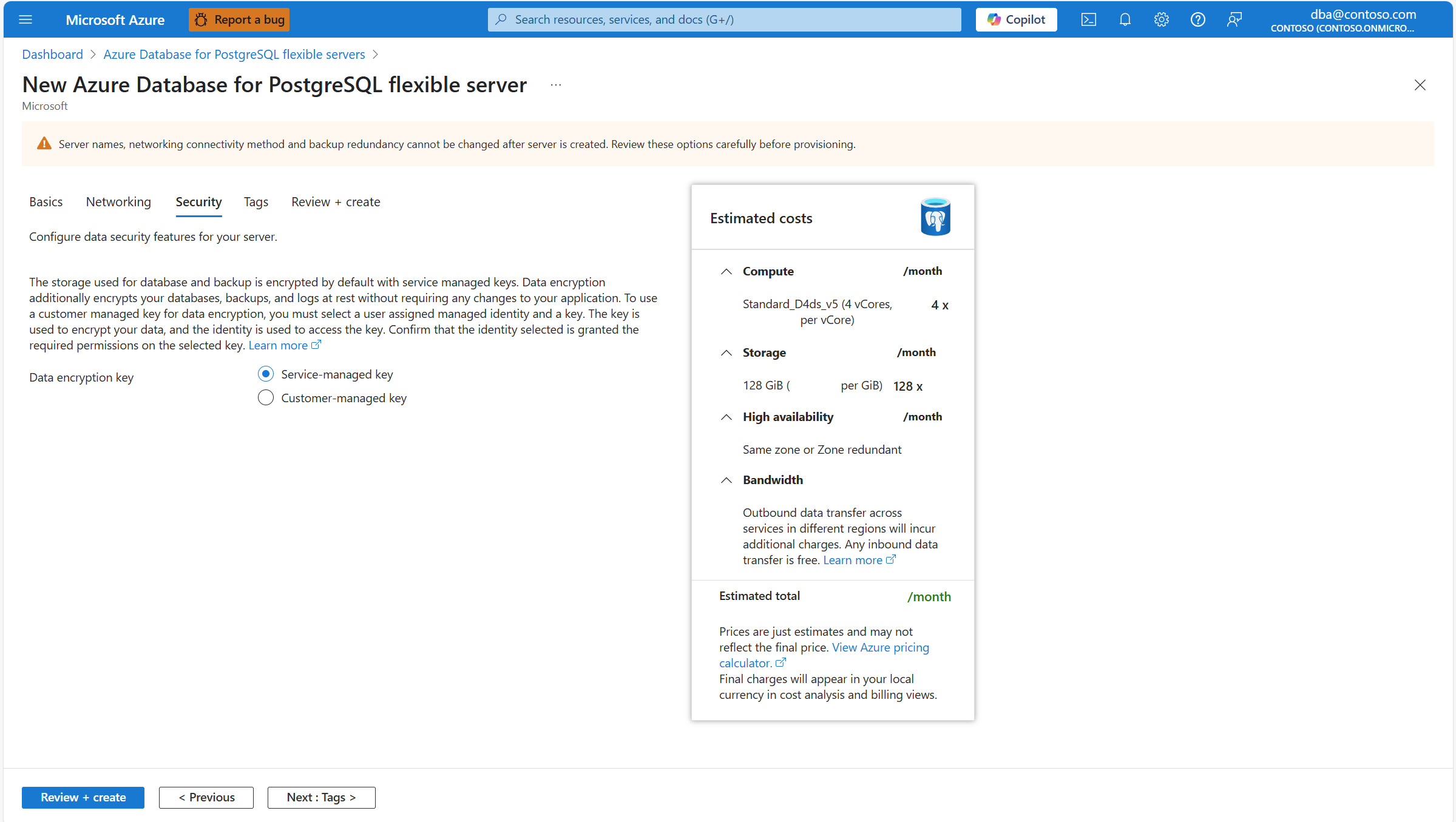
If you enable geo-redundant backup storage to be provisioned together with the server, the aspect of the Security tab changes slightly because the server uses two separate encryption keys. One key is for the primary region in which you're deploying your server, and one key is for the paired region to which the server backups are asynchronously replicated.


Configure data encryption with customer managed key during server provisioning
Use the Azure portal:
- Create a user assigned managed identity, if you don't have one yet. If your server has geo-redundant backups enabled, you need to create two different identities. Each of those identities accesses each of the two data encryption keys.
Note
Although it's not required, to maintain regional resiliency, create the user managed identity in the same region as your server. If your server has geo-backup redundancy enabled, create the second user managed identity in the paired region of the server.
- Create an Azure Key Vault or create a Managed HSM, if you don't have a key store created yet. Make sure that you meet the requirements. Also, follow the recommendations before you configure the key store, and before you create the key and assign the required permissions to the user assigned managed identity. If your server has geo-redundant backups enabled, you need to create a second key store. That second key store keeps the data encryption key that encrypts your backups copied to the paired region of the server.
Note
You must deploy the key store that keeps the data encryption key in the same region as your server. If your server has geo-backup redundancy enabled, you must create the key store that keeps the data encryption key for geo-redundant backups in the paired region of the server.
Create a key in your key store. If your server has geo-redundant backups enabled, you need one key on each of the key stores. By using one of these keys, you encrypt all your server's data (including all system and user databases, temporary files, server logs, write-ahead log segments, and backups). By using the second key, you encrypt the copies of the backups that are asynchronously copied over the paired region of your server.
During provisioning of a new Azure Database for PostgreSQL flexible server, configure data encryption in the Security tab. For Data encryption key, select the Customer-managed key radio button.
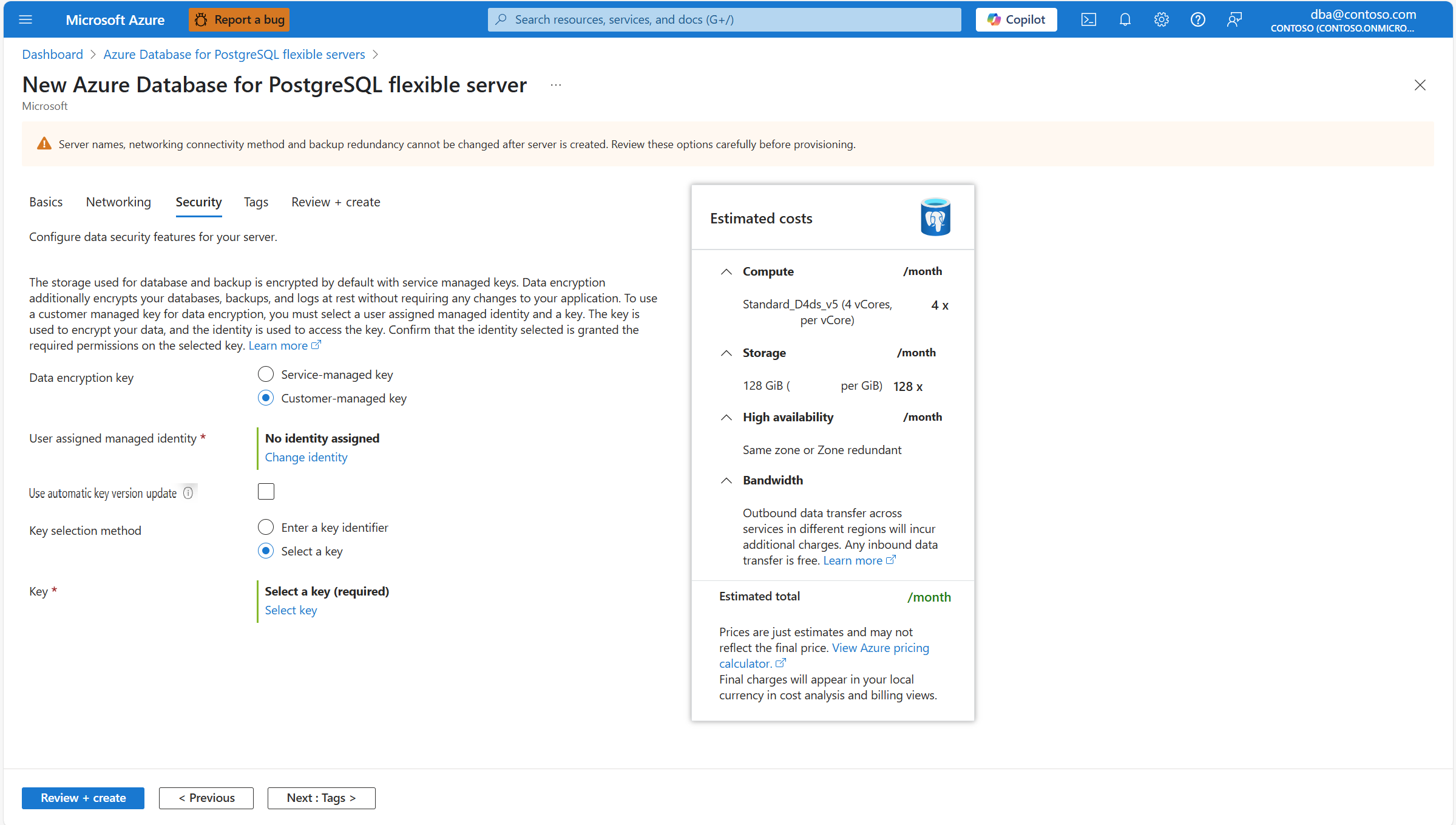
If you enable geo-redundant backup storage to be provisioned together with the server, the aspect of the Security tab changes slightly because the server uses two separate encryption keys. One key is for the primary region in which you're deploying your server, and one key is for the paired region to which the server backups are asynchronously replicated.

In User assigned managed identity, select Change identity.

From the list of user assigned managed identities, select the one you want your server to use to access the data encryption key stored in an Azure Key Vault.
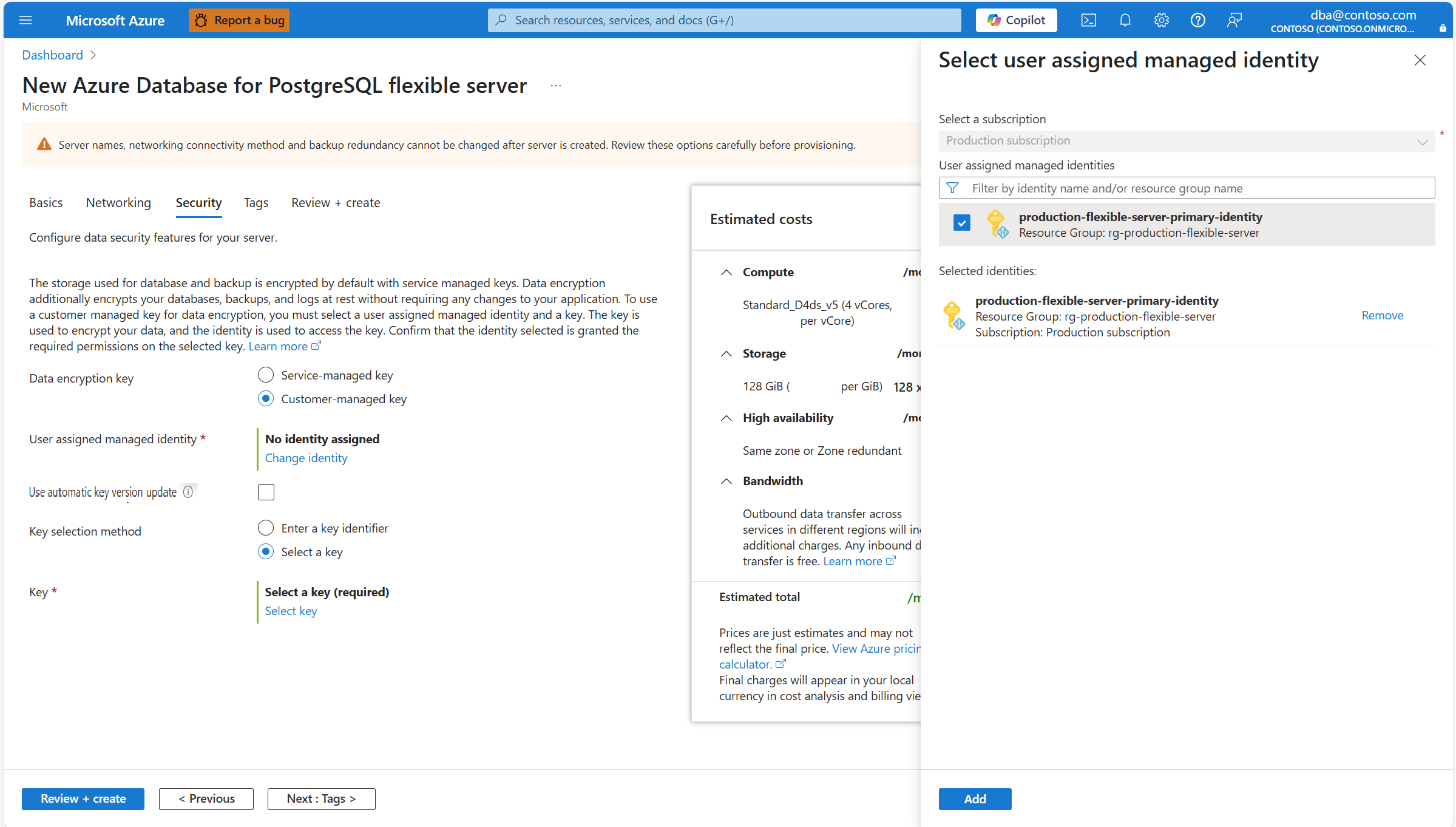
Select Add.

Select Use automatic key version update, if you prefer to let the service automatically update the reference to the most current version of the chosen key, whenever the current version is rotated manually or automatically. To understand the benefits of using automatic key version updates, see automatic key version update.
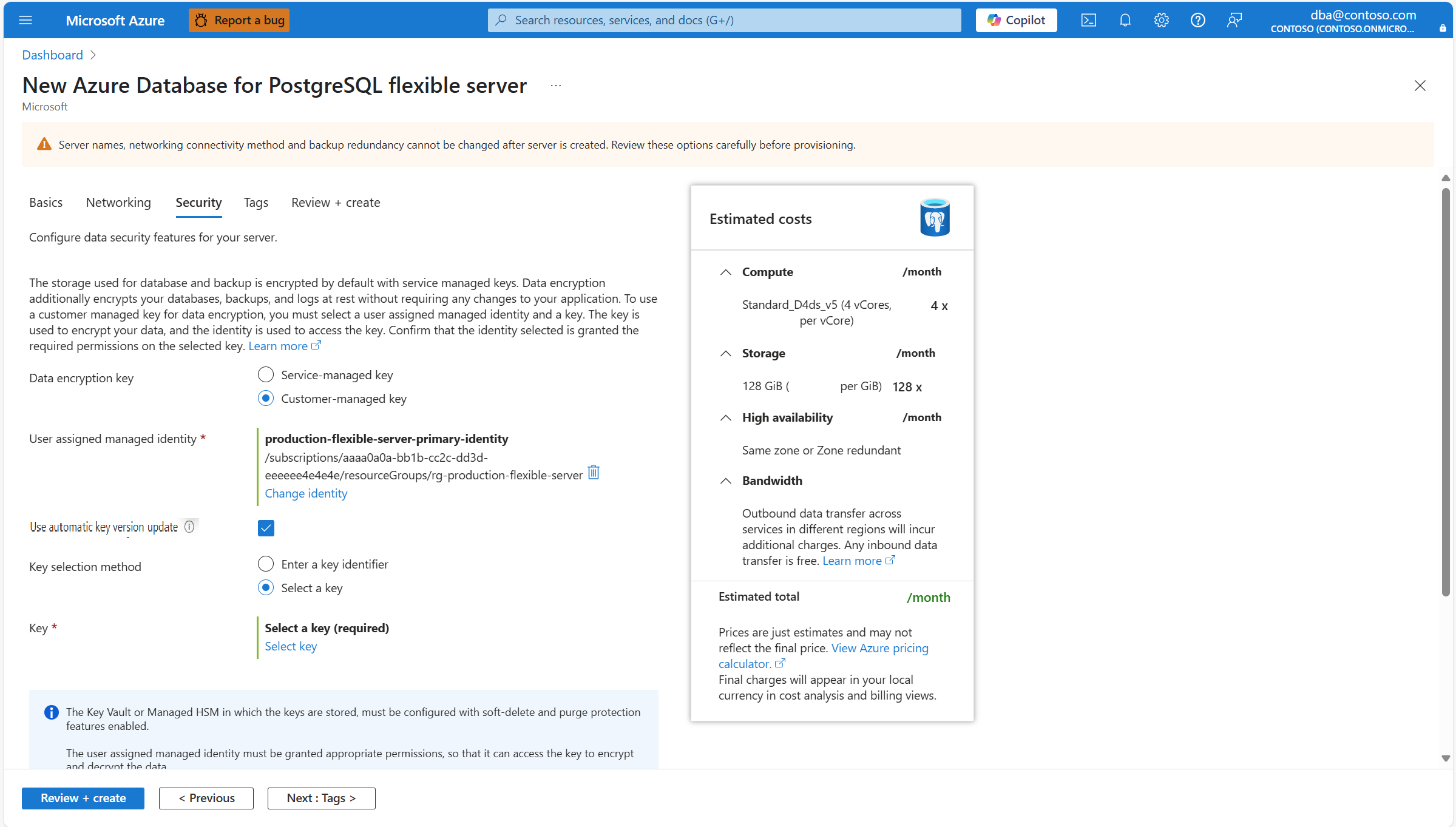
Select Select a key.
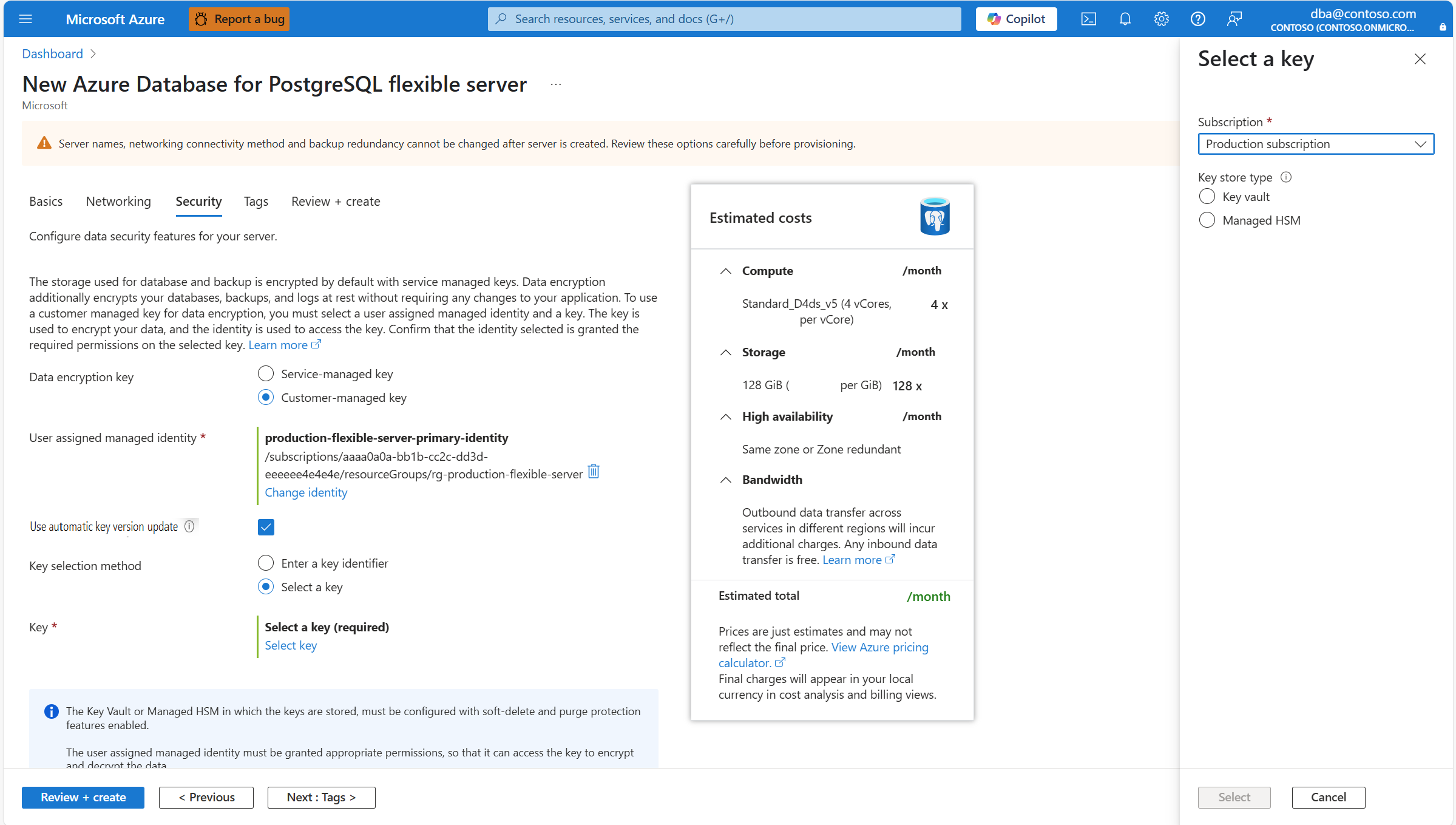
Subscription is automatically populated with the name of the subscription on which your server is about to be created. The key store that keeps the data encryption key must exist in the same subscription as the server.
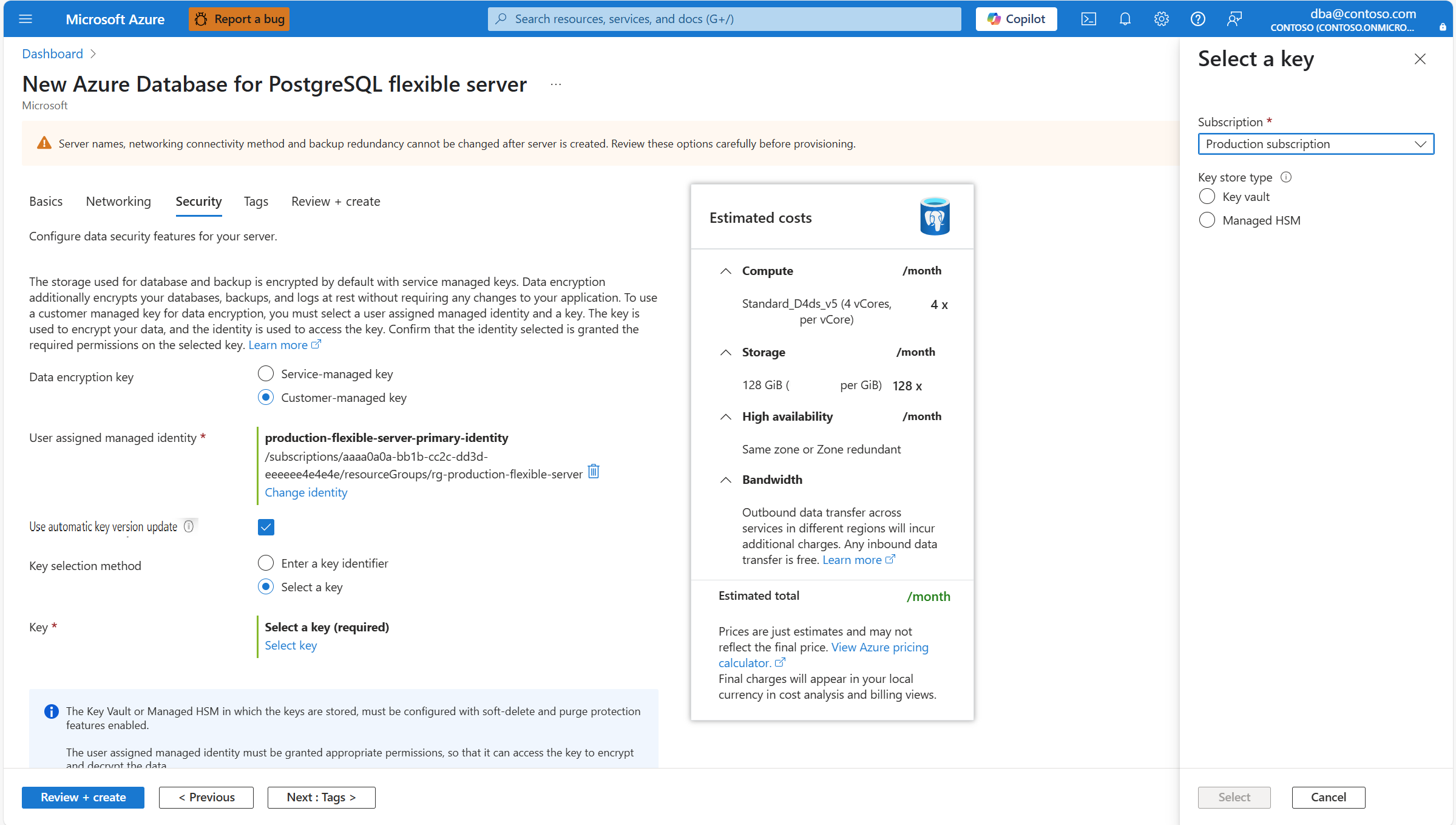
In Key store type, select the radio button corresponding to the type of key store in which you plan to store the data encryption key. In this example, choose Key vault, but the experience is similar if you choose Managed HSM.
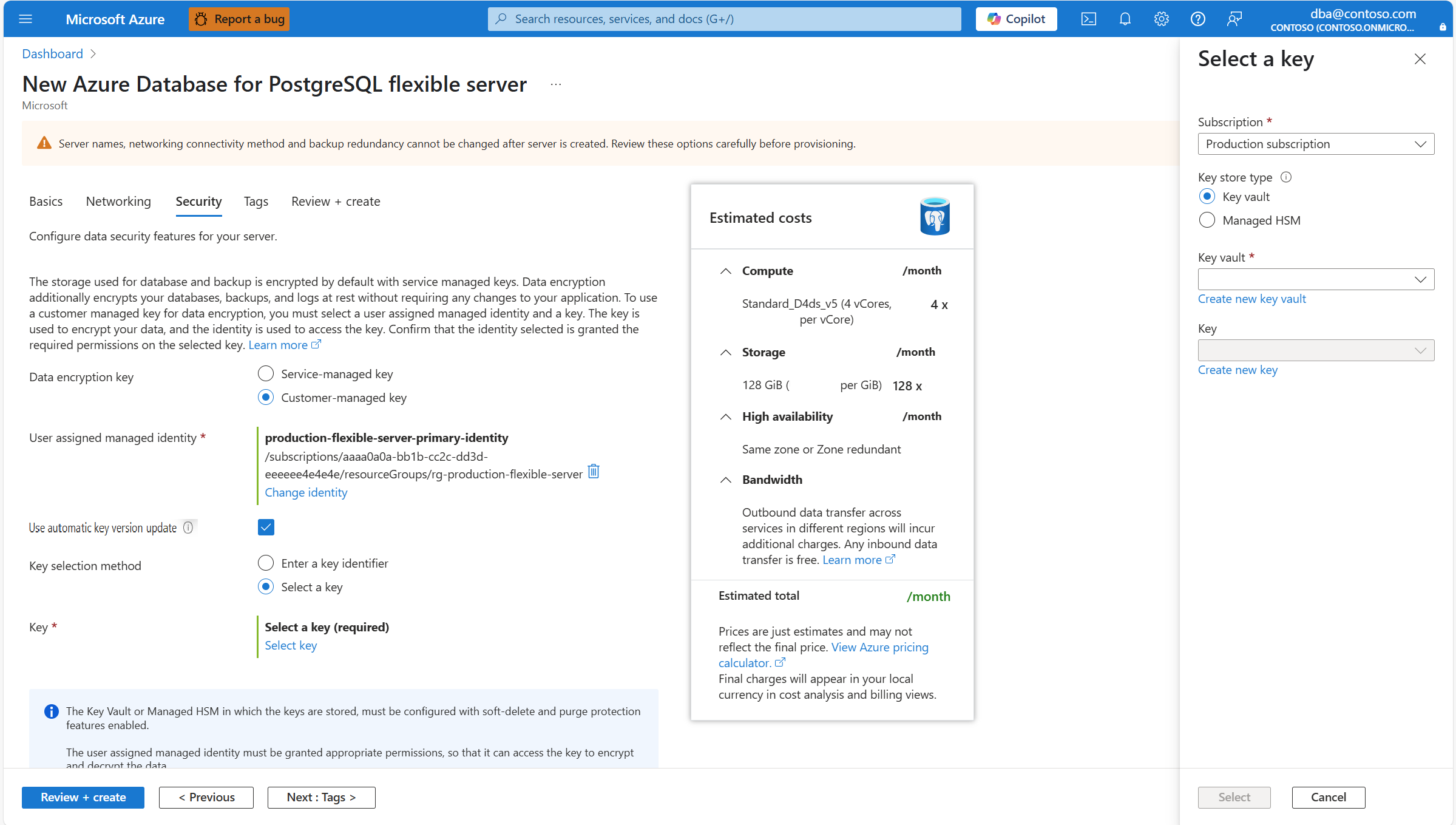
Expand Key vault (or Managed HSM, if you selected that storage type), and select the instance where the data encryption key exists.
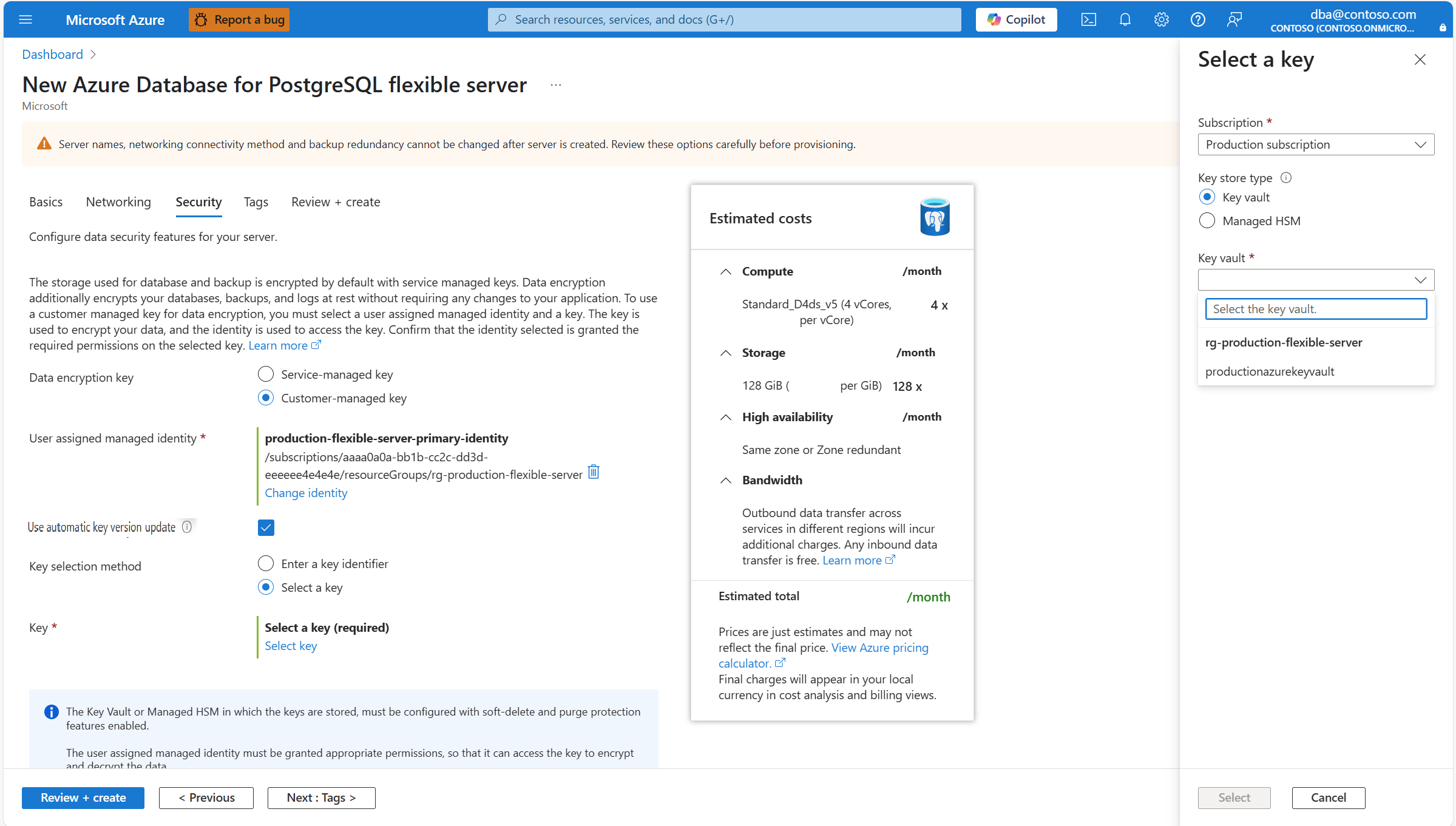
Note
When you expand the dropdown box, it shows No available items. It takes a few seconds until it lists all the instances of key vault which are deployed in the same region as the server.
Expand Key, and select the name of the key that you want to use for data encryption.
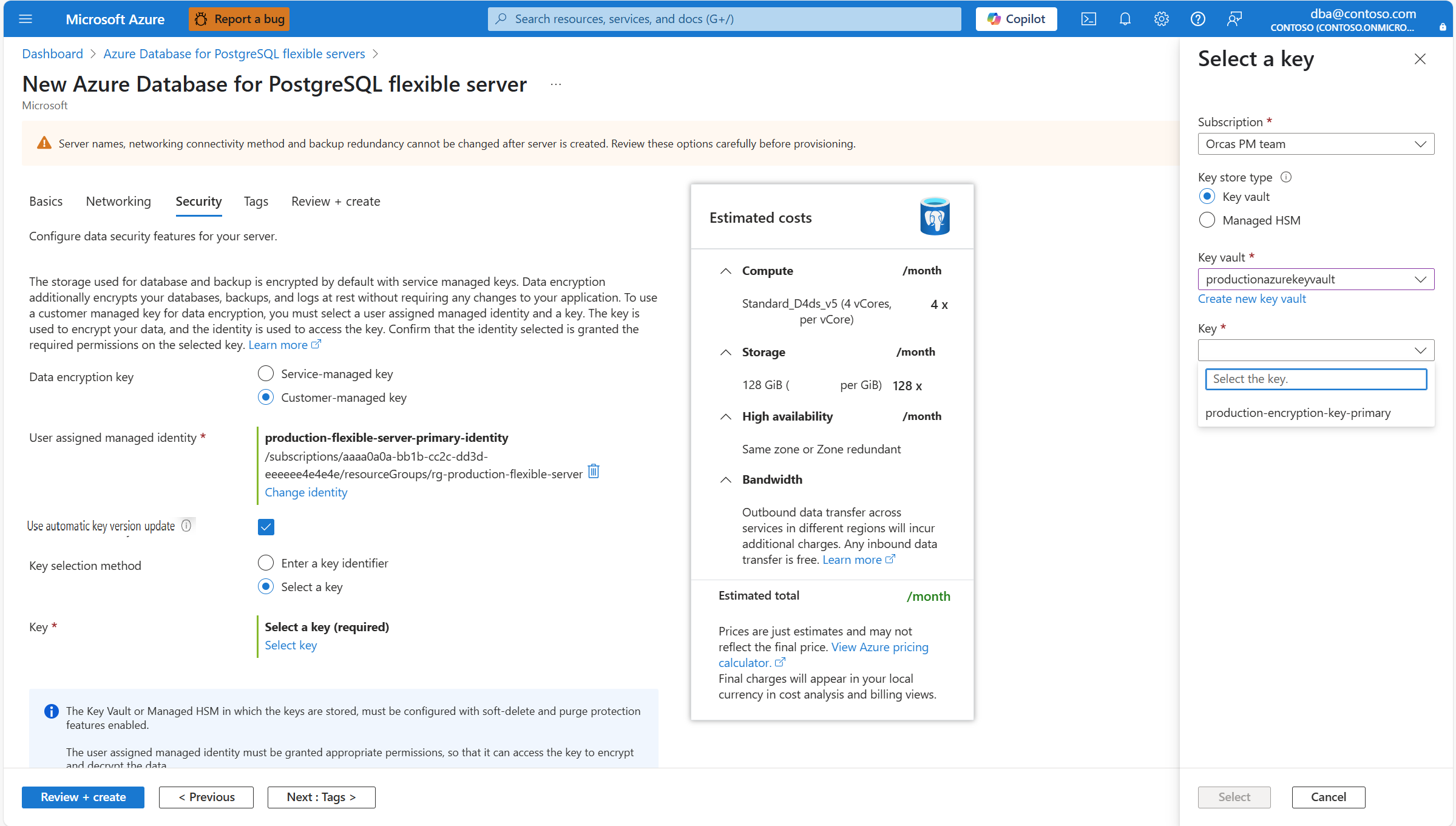
If you didn't select Use automatic key version update, you must also select a specific version of the key. To do that, expand Version, and select the identifier of the version of the key that you want to use for data encryption.
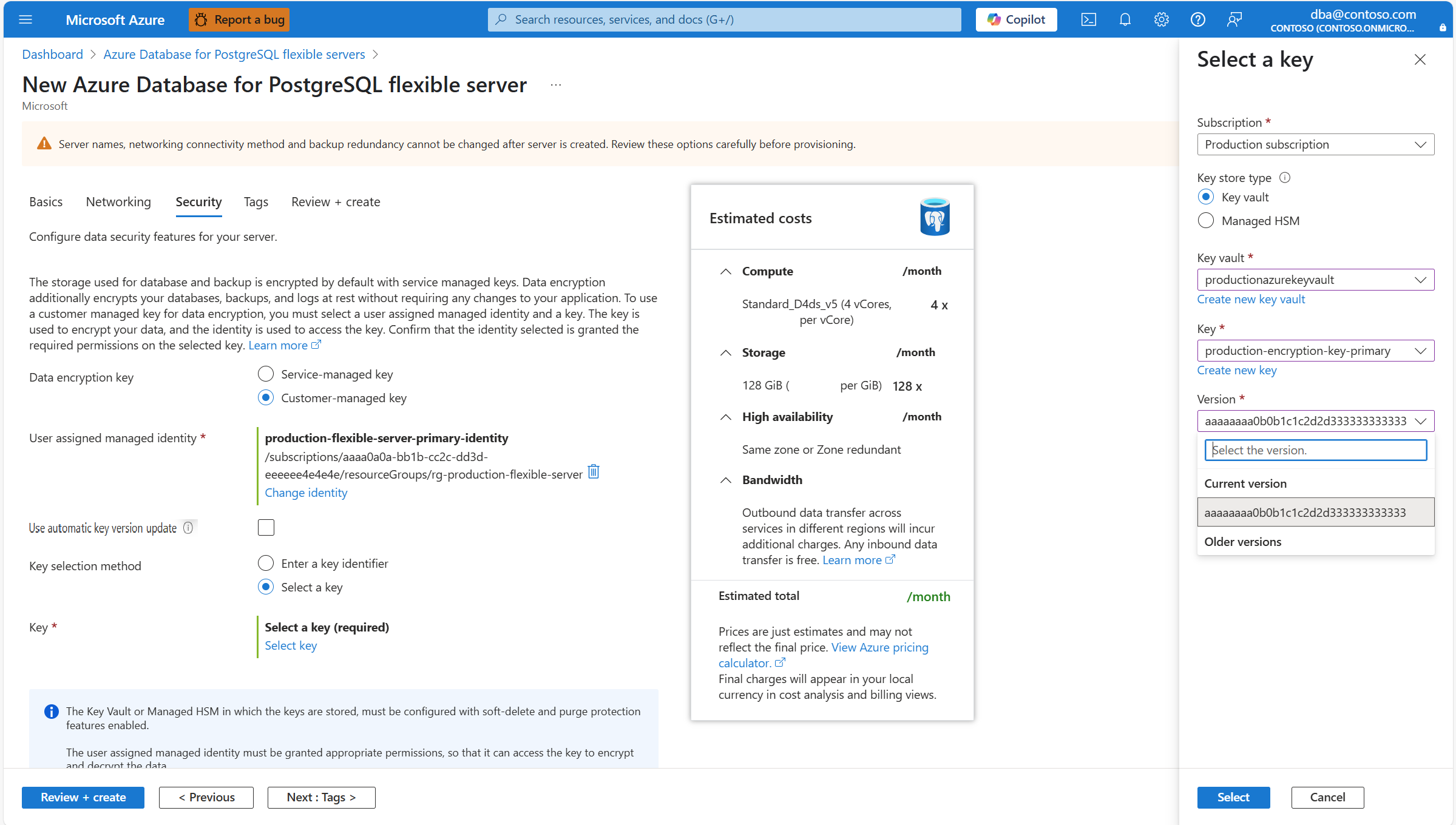
Select Select.
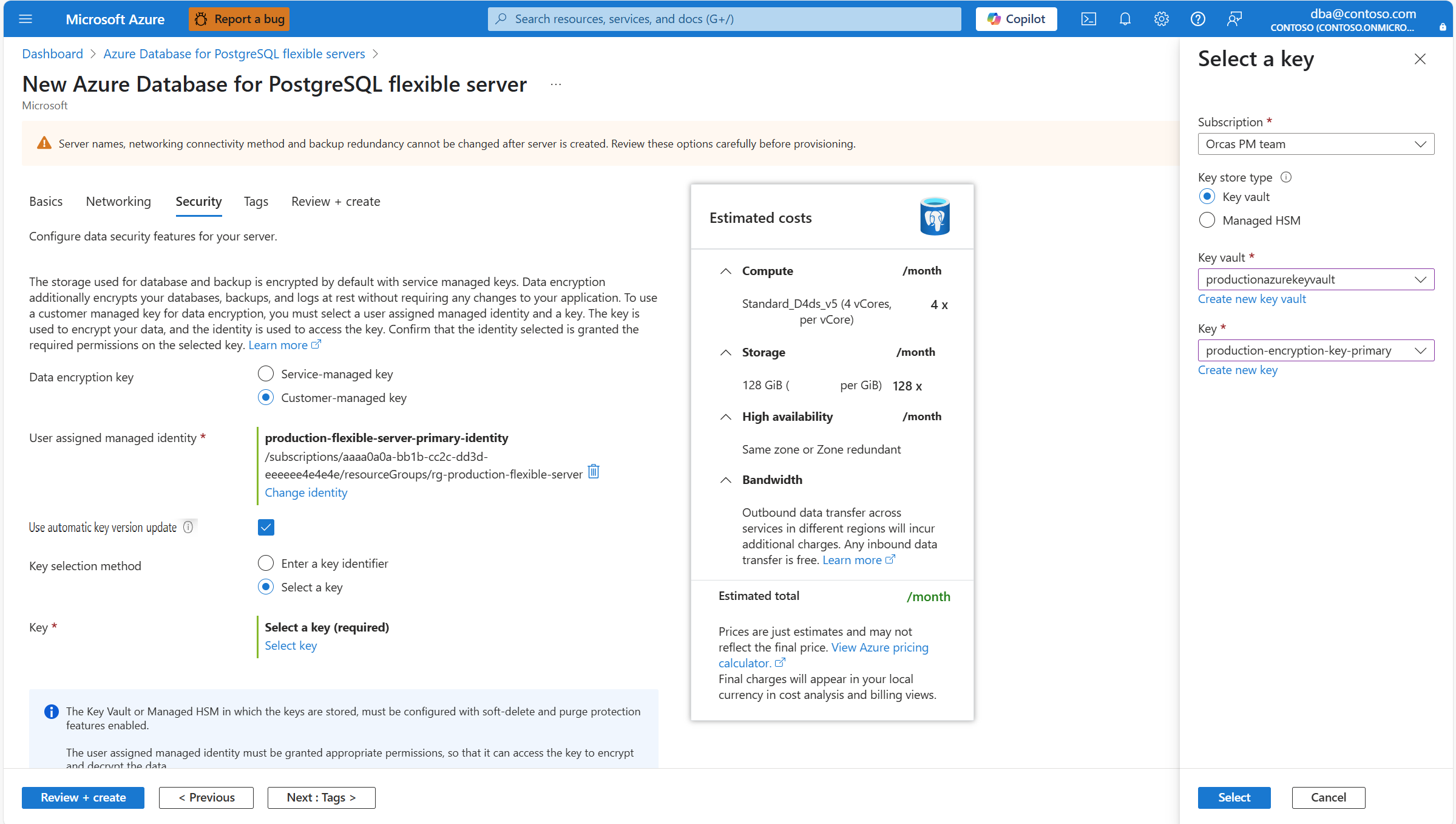
Configure all other settings of the new server and select Review + create.


Configure data encryption with customer managed key on existing servers
You decide whether to use a system managed key or a customer managed key for data encryption at server creation. After you make that decision and create the server, you can't switch between the two options. The only alternative, if you want to change from one to the other, requires restoring any of the backups available of server onto a new server. While configuring the restore, you can change the data encryption configuration of the new server.
For existing servers that you deployed with data encryption by using a customer managed key, you can make several configuration changes. You can change the references to the keys used for encryption, and references to the user assigned managed identities that the service uses to access the keys kept in the key stores.
You must update references that your Azure Database for PostgreSQL flexible server has to a key:
- When the key stored in the key store is rotated, either manually or automatically, and your Azure Database for PostgreSQL flexible server is pointing to a specific version of the key. If you're pointing to a key, but not to a specific version of the key (that's when you have Use automatic key version update enabled), the service automatically references the most current version of the key whenever the key is manually or automatically rotated.
- When you want to use the same or a different key stored in a different key store.
You must update the user assigned managed identities that your Azure Database for PostgreSQL flexible server uses to access the encryption keys whenever you want to use a different identity.
Use the Azure portal:
Select your Azure Database for PostgreSQL flexible server.
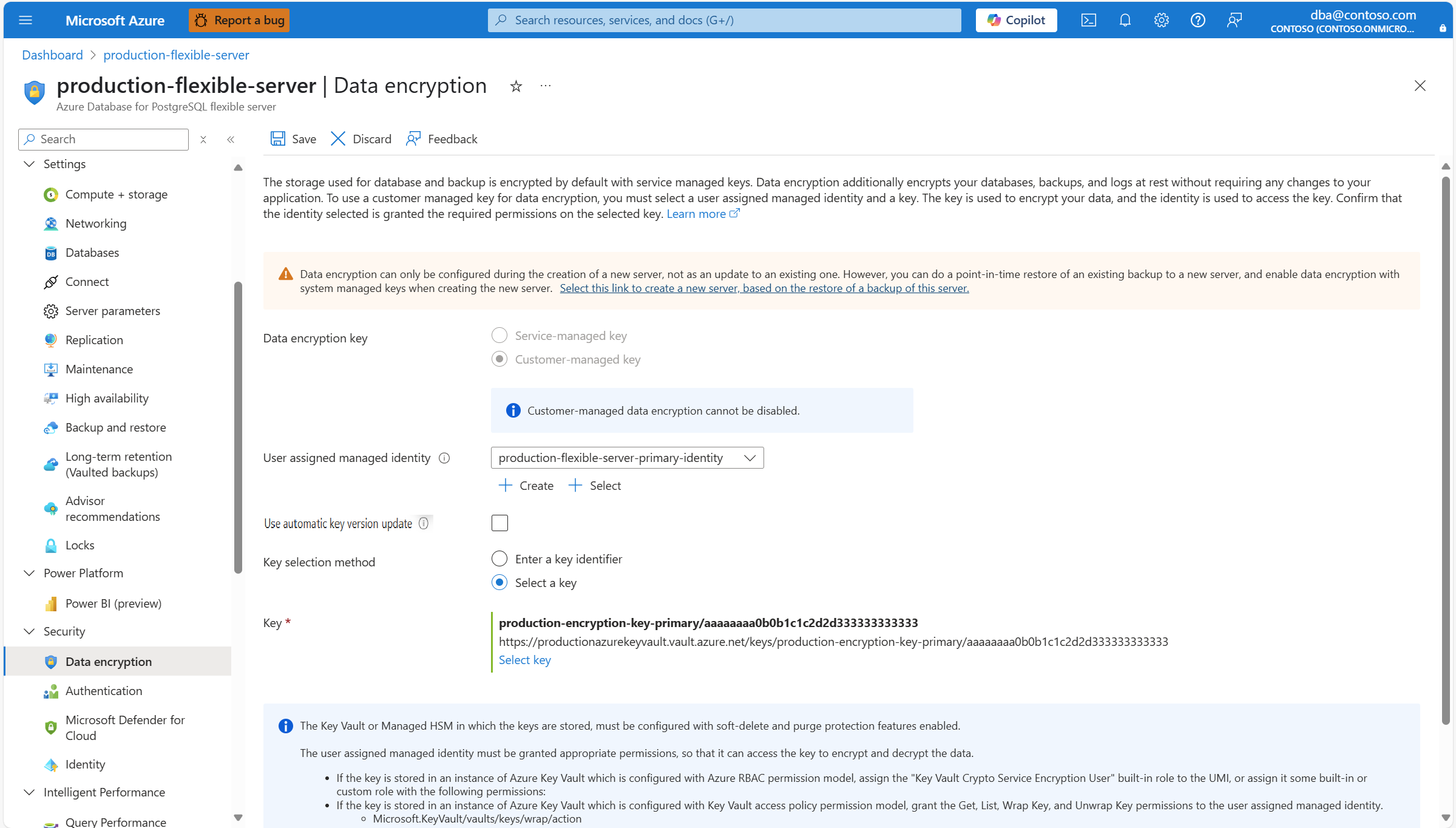
In the resource menu, under the Security section, select Data encryption.
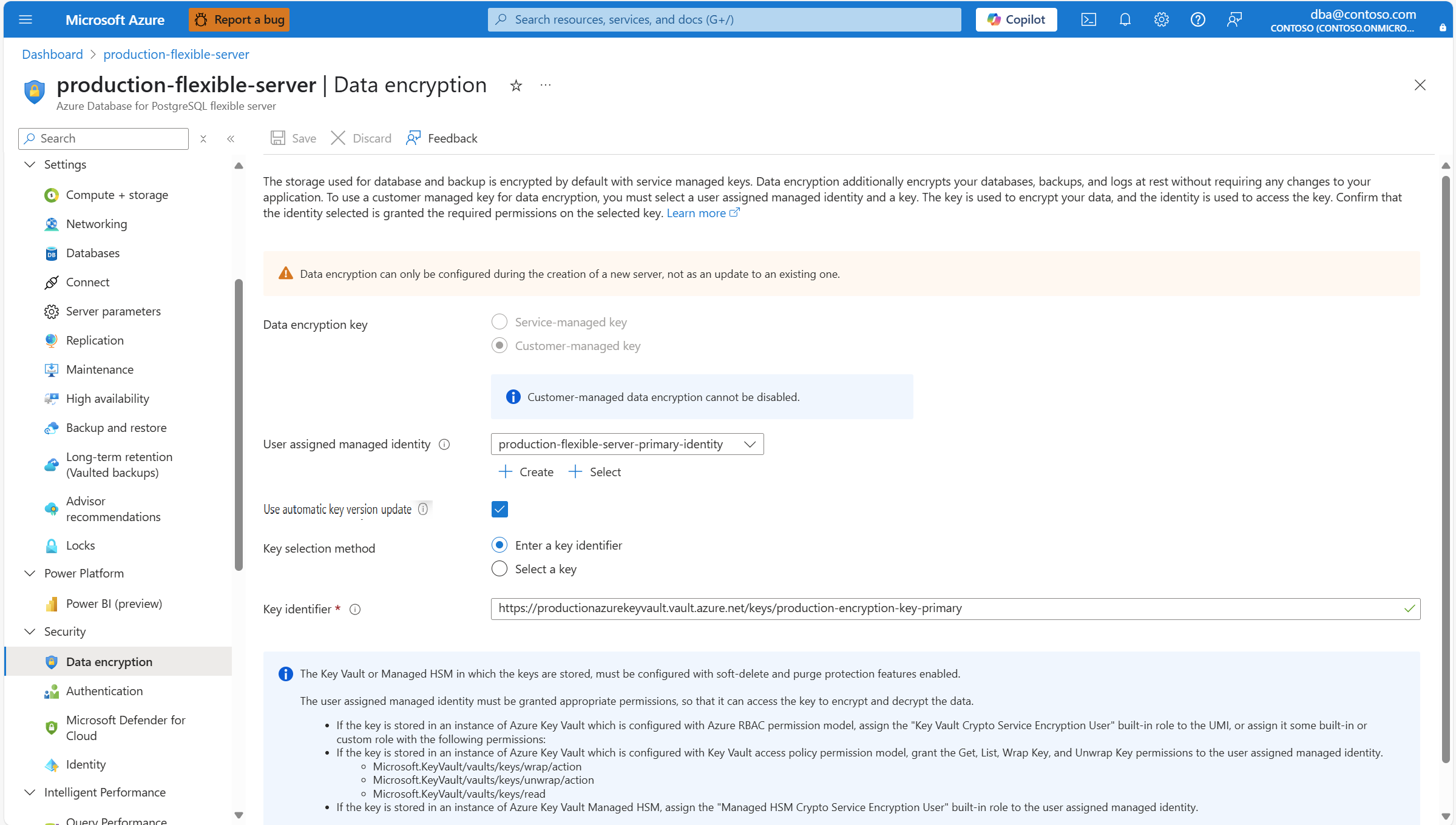
To change the user assigned managed identity that the server uses to access the key store, expand the User assigned managed identity dropdown, and select any of the available identities.
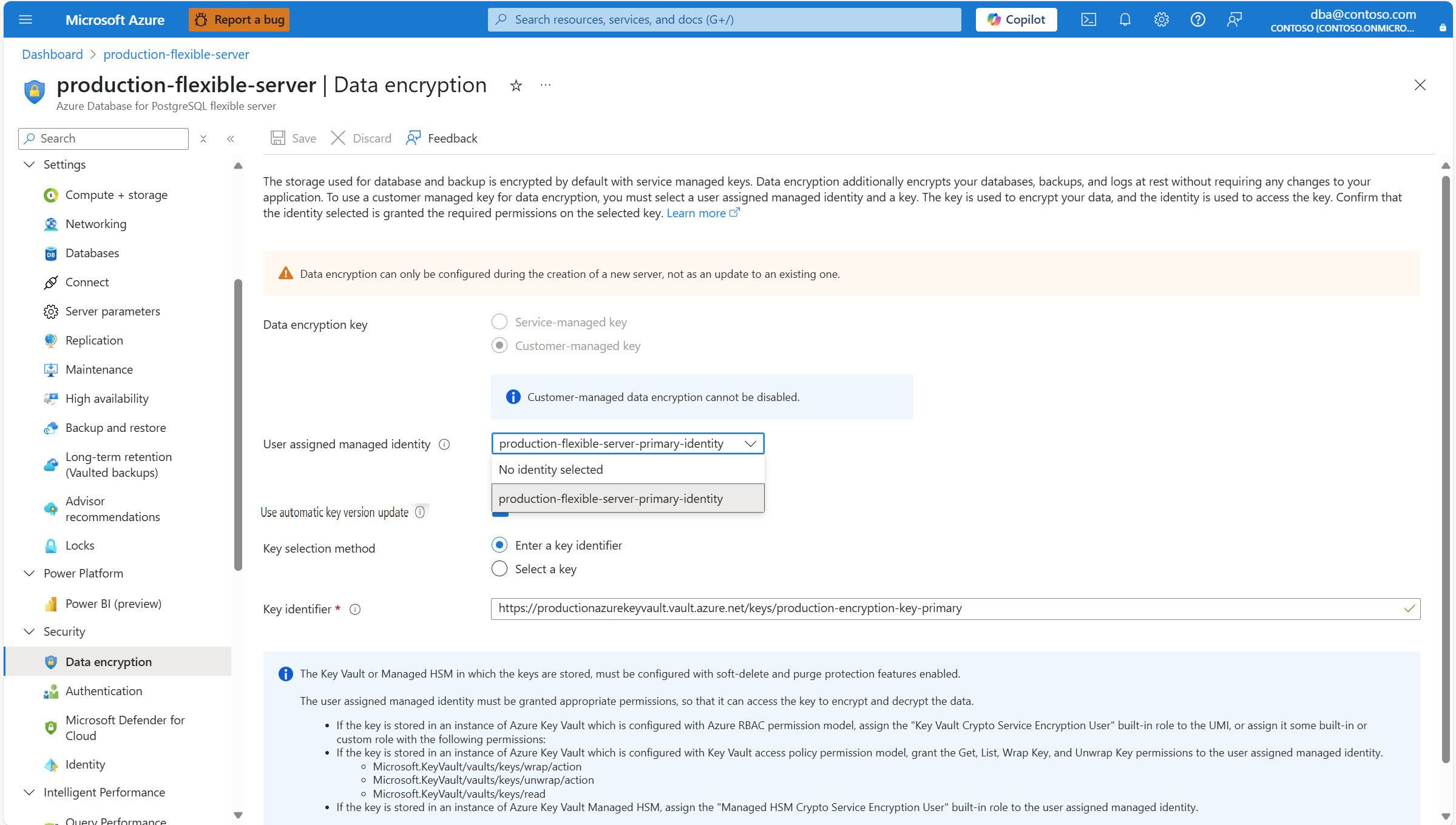
Note
The combo box shows only the identities that your Azure Database for PostgreSQL flexible server assigned. Although it's not required, to maintain regional resiliency, select user managed identities in the same region as your server. If your server has geo-backup redundancy enabled, the second user managed identity, used to access the data encryption key for geo-redundant backups, should exist in the paired region of the server.
If the user assigned managed identity that you want to use to access the data encryption key isn't assigned to your Azure Database for PostgreSQL flexible server, and it doesn't exist as an Azure resource with its corresponding object in Microsoft Entra ID, create it by selecting Create.
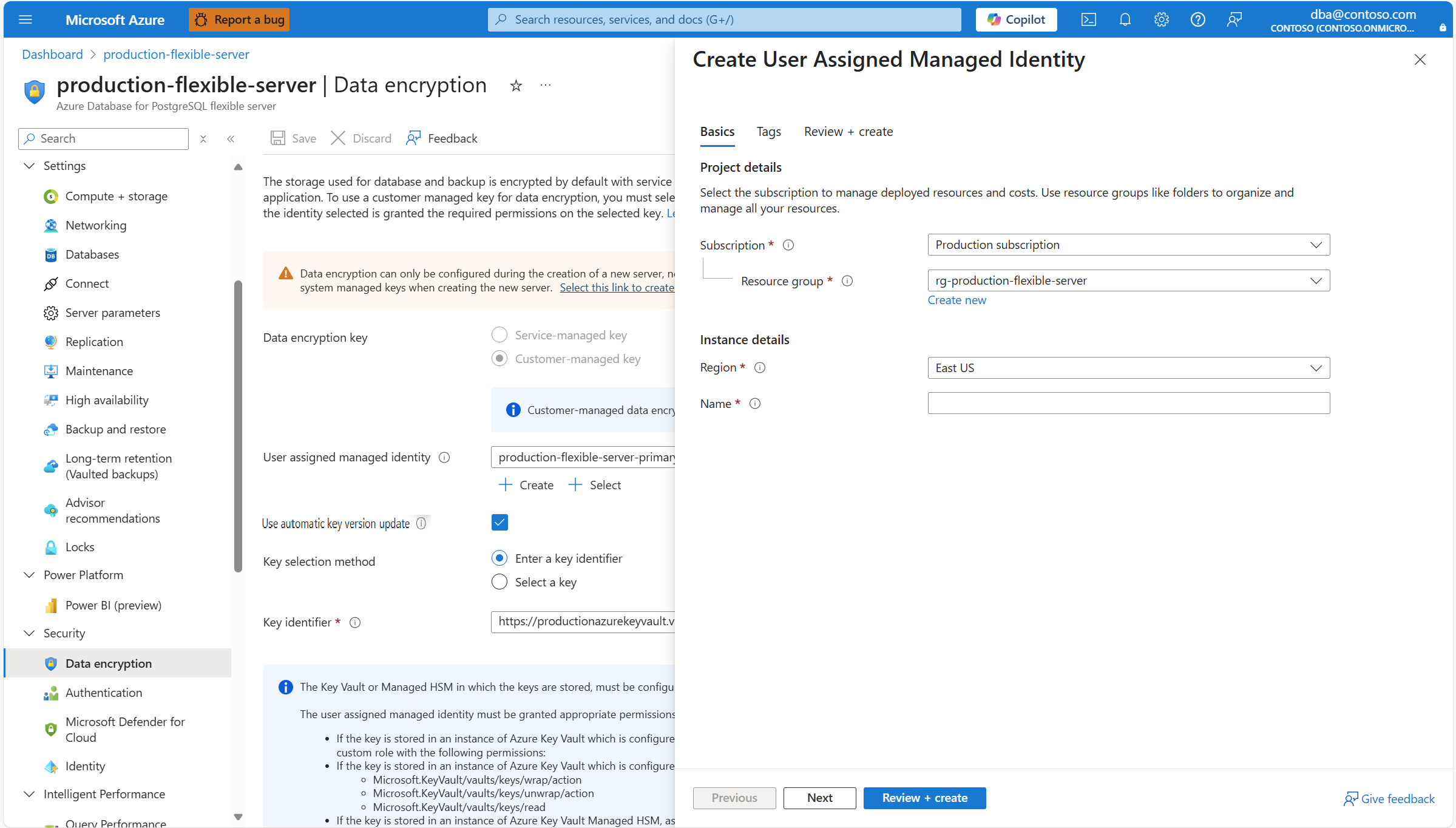
In the Create User Assigned Managed Identity panel, enter the details of the user assigned managed identity that you want to create, and automatically assign it to your Azure Database for PostgreSQL flexible server to access the data encryption key.

If the user assigned managed identity that you want to use to access the data encryption key isn't assigned to your Azure Database for PostgreSQL flexible server, but it exists as an Azure resource with its corresponding object in Microsoft Entra ID, assign it by selecting Select.
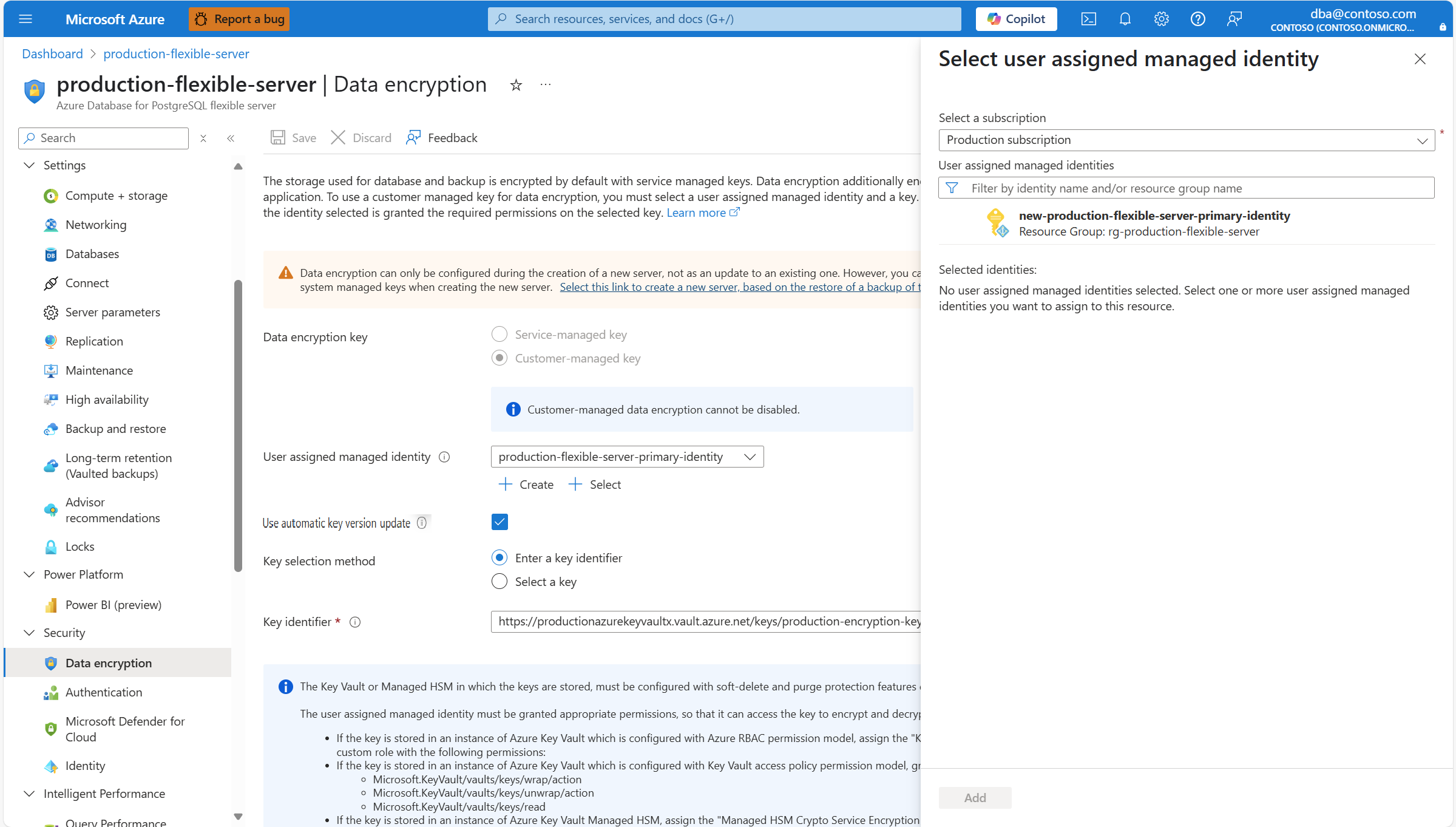
From the list of user assigned managed identities, select the one you want your server to use to access the data encryption key stored in an Azure Key Vault.

Select Add.

Select Use automatic key version update if you want the service to automatically update the reference to the most current version of the chosen key whenever the current version is rotated manually or automatically. To understand the benefits of using automatic key version updates, see [automatic key version update](../security/security-data-encryption.md##CMK key version updates).
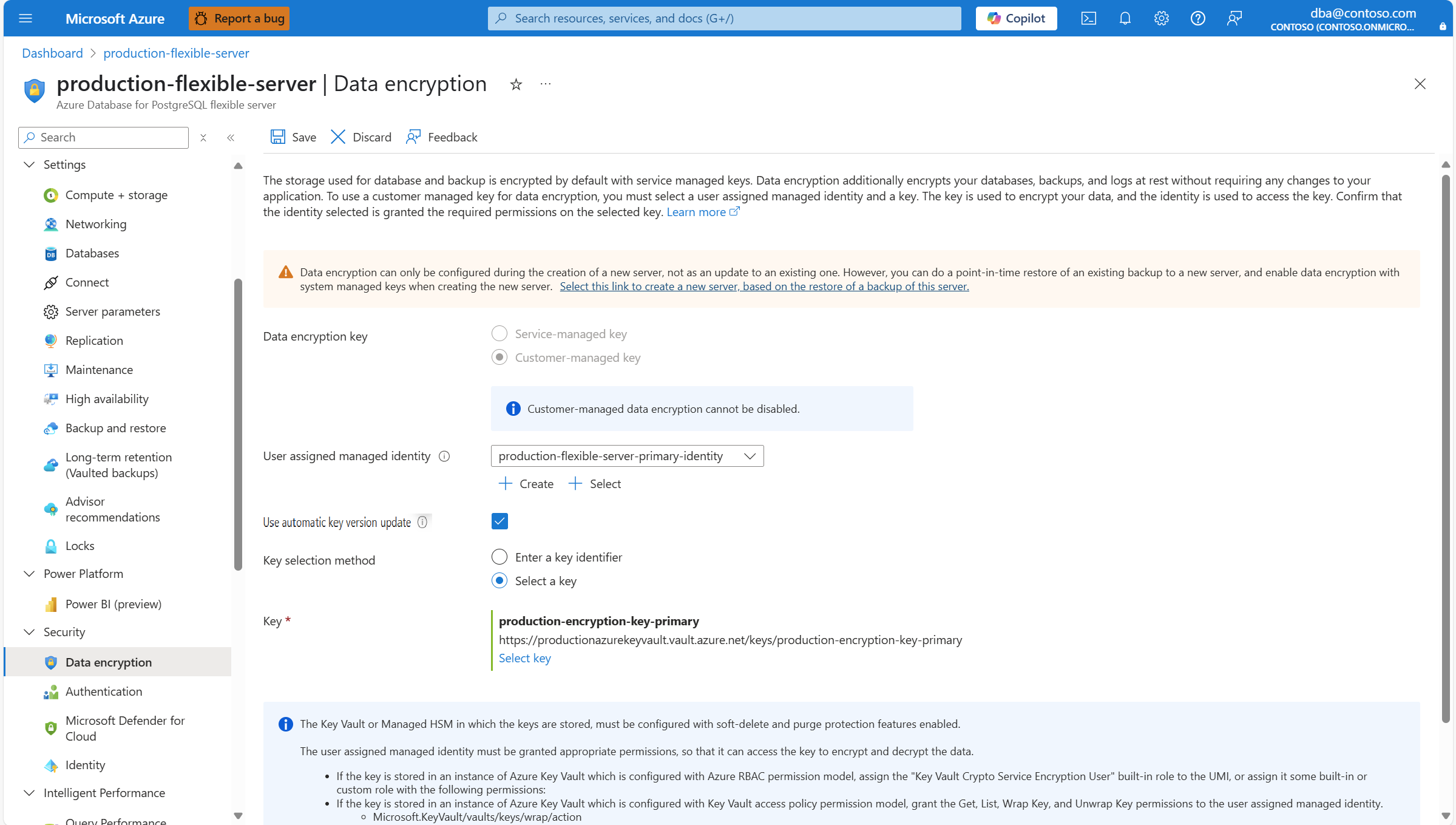
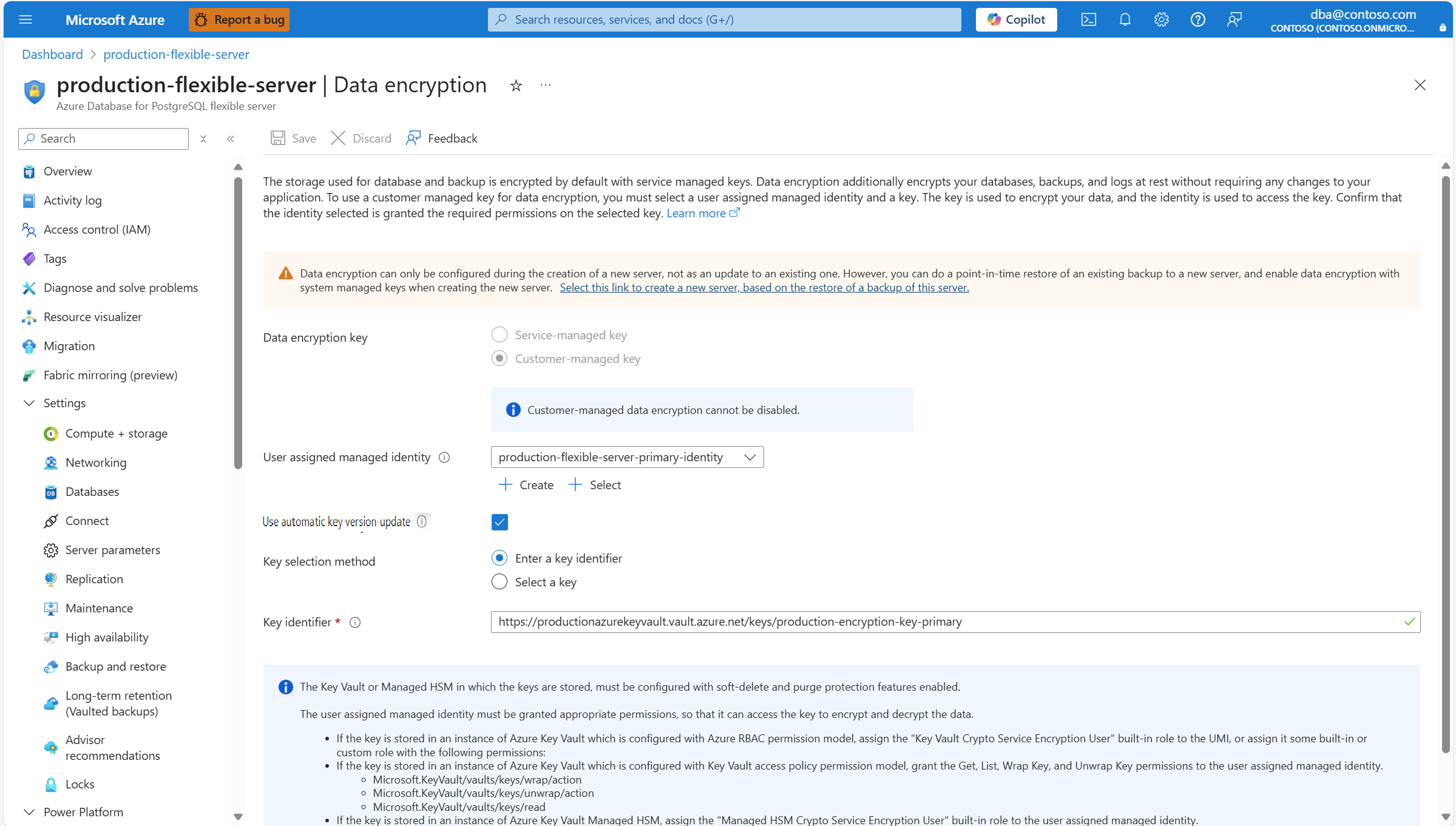
If you rotate the key and don't enable Use automatic key version update. Or if you want to use a different key, update your Azure Database for PostgreSQL flexible server so that it points to the new key version or new key. To do that, copy the resource identifier of the key, and paste it in the Key identifier box.
If the user accessing Azure portal has permissions to access the key stored in the key store, you can use an alternative approach to choose the new key or new key version. To do that, in Key selection method, select the Select a key radio button.
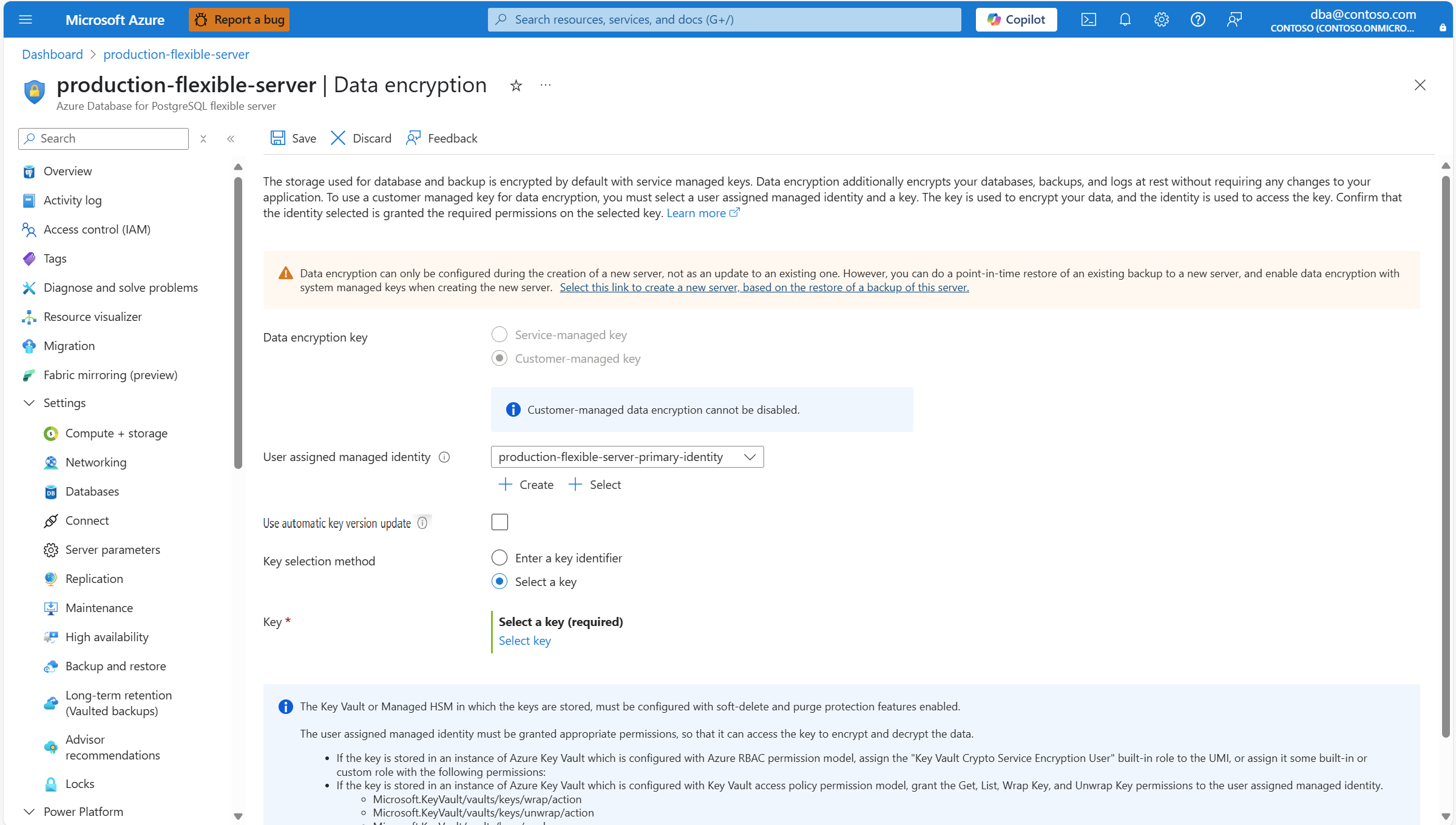
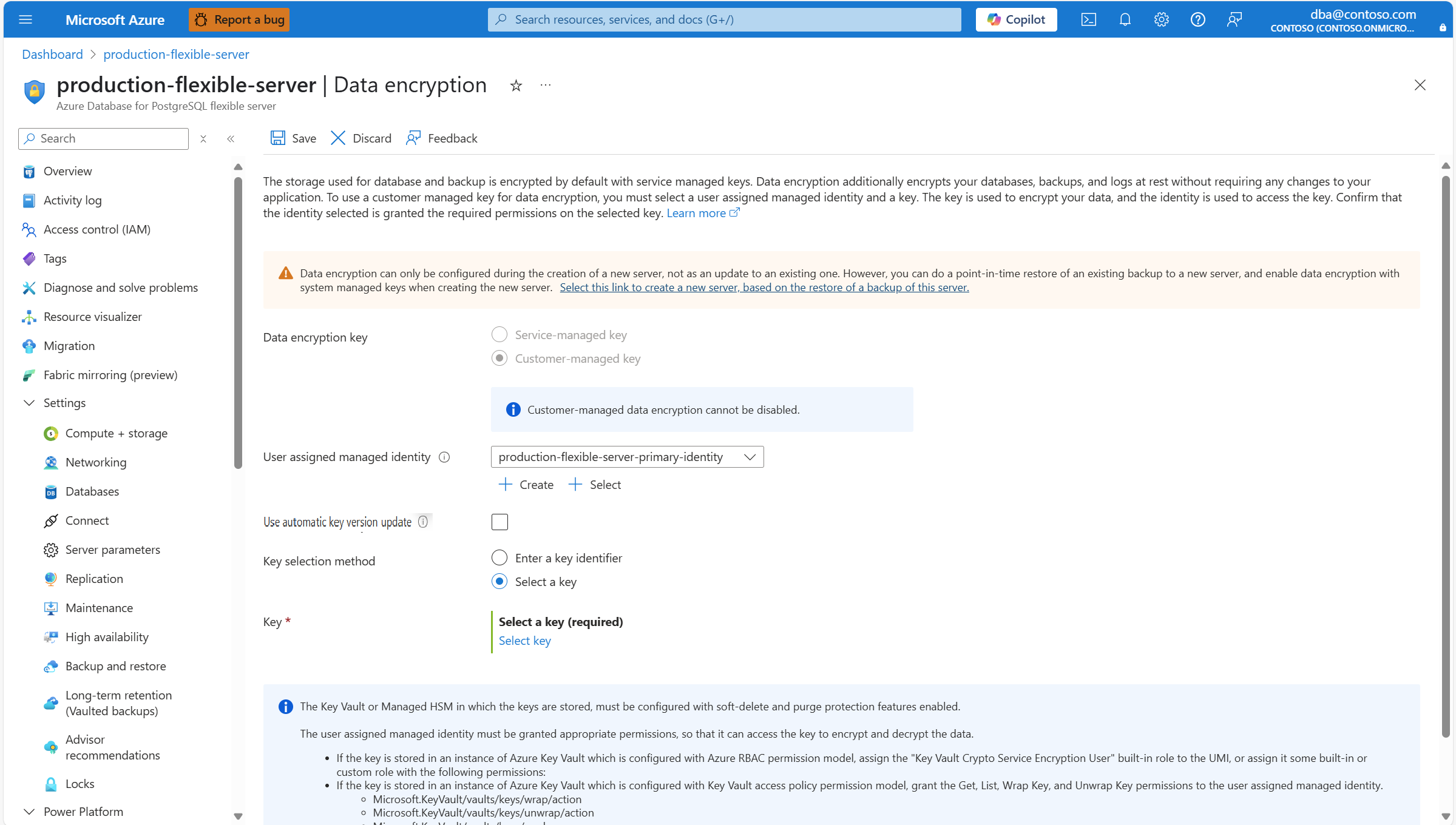
Select Select key.
Subscription is automatically populated with the name of the subscription on which your server is about to be created. The key store that keeps the data encryption key must exist in the same subscription as the server.
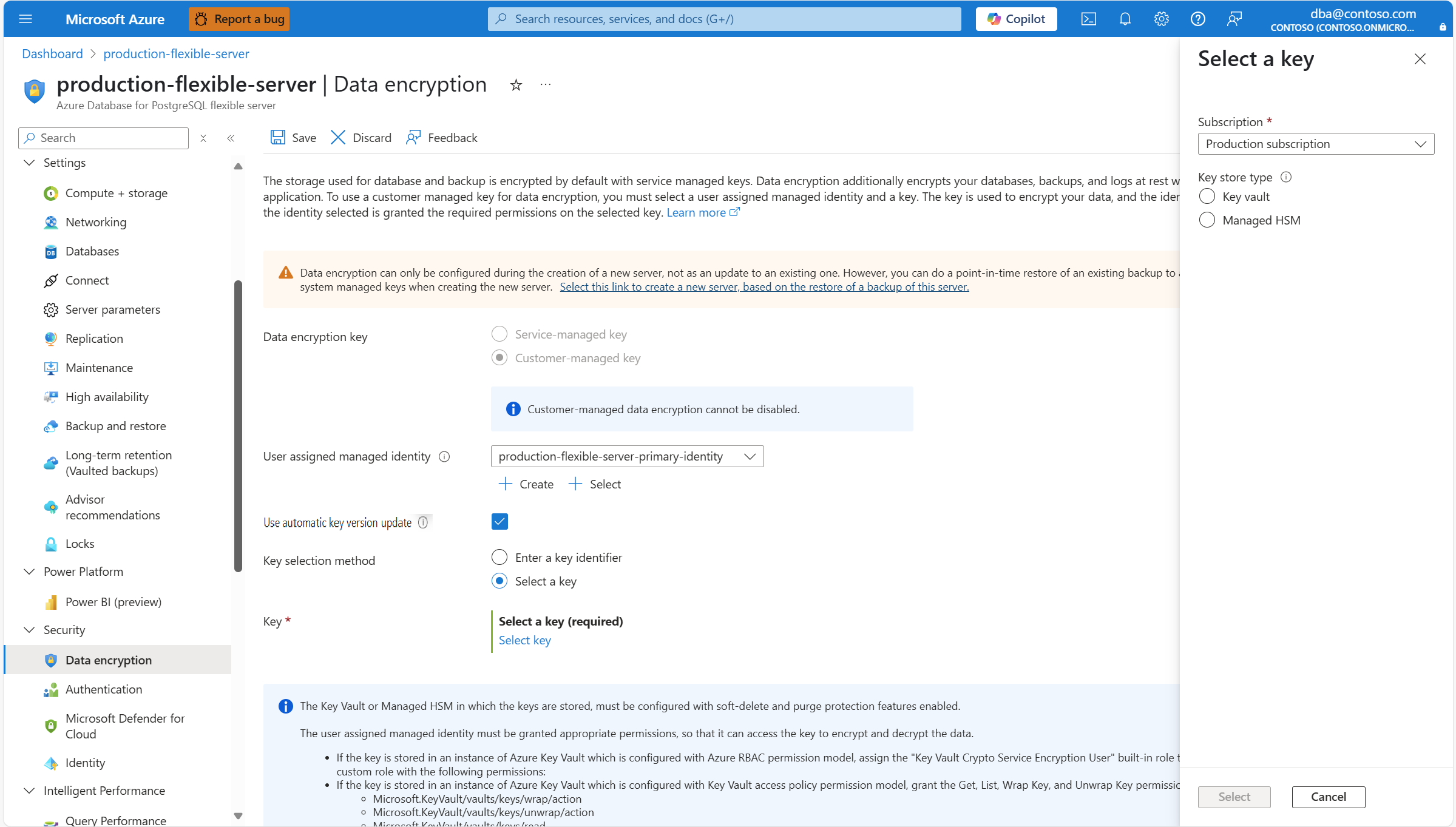
In Key store type, select the radio button corresponding to the type of key store in which you plan to store the data encryption key. In this example, choose Key vault, but the experience is similar if you choose Managed HSM.
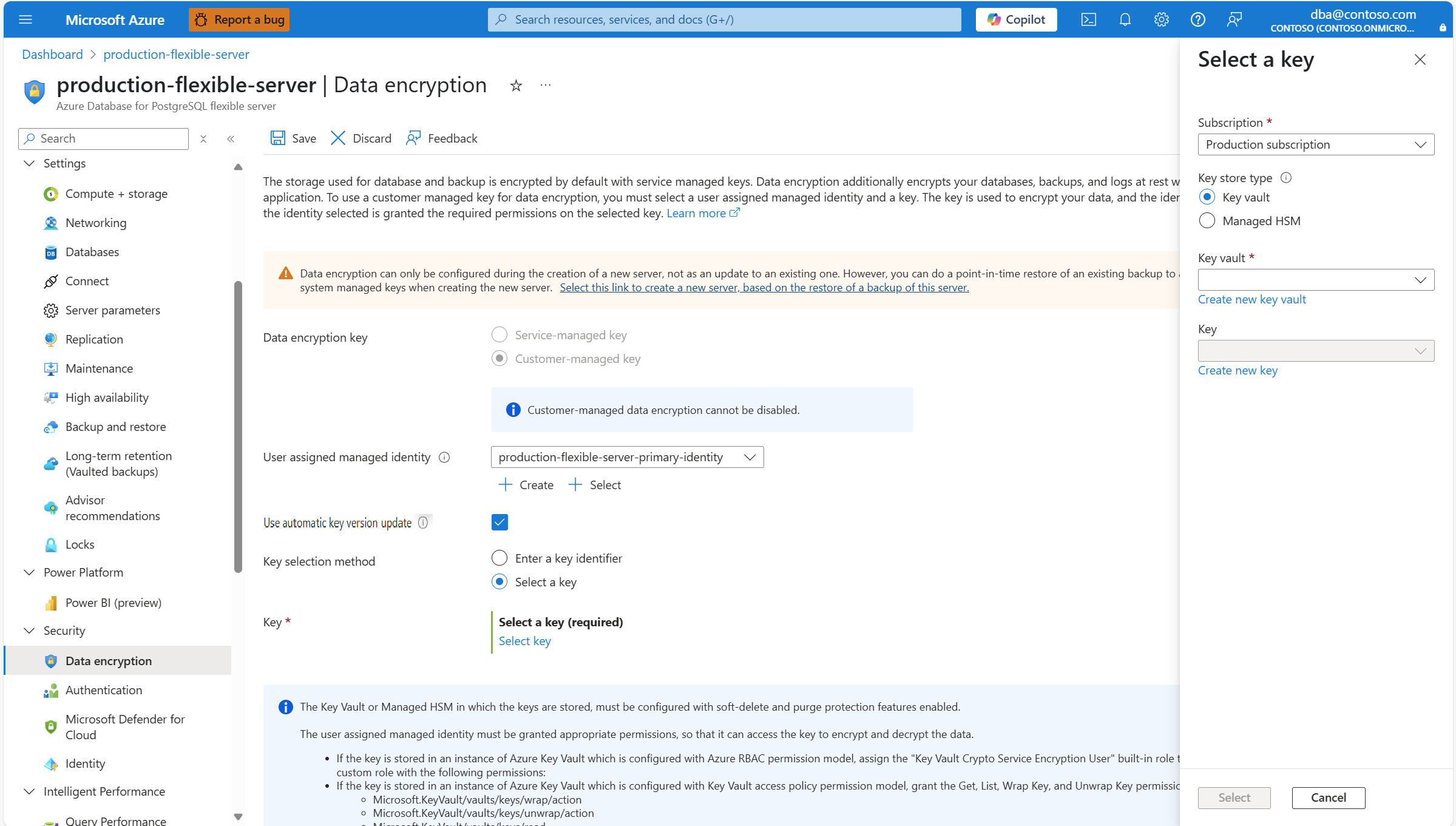
Expand Key vault (or Managed HSM, if you selected that storage type), and select the instance where the data encryption key exists.

Note
When you expand the dropdown box, it shows No available items. It takes a few seconds until it lists all the instances of key vault which are deployed in the same region as the server.
Expand Key, and select the name of the key that you want to use for data encryption.

If you didn't select Use automatic key version update, you must also select a specific version of the key. To do that, expand Version, and select the identifier of the version of the key that you want to use for data encryption.
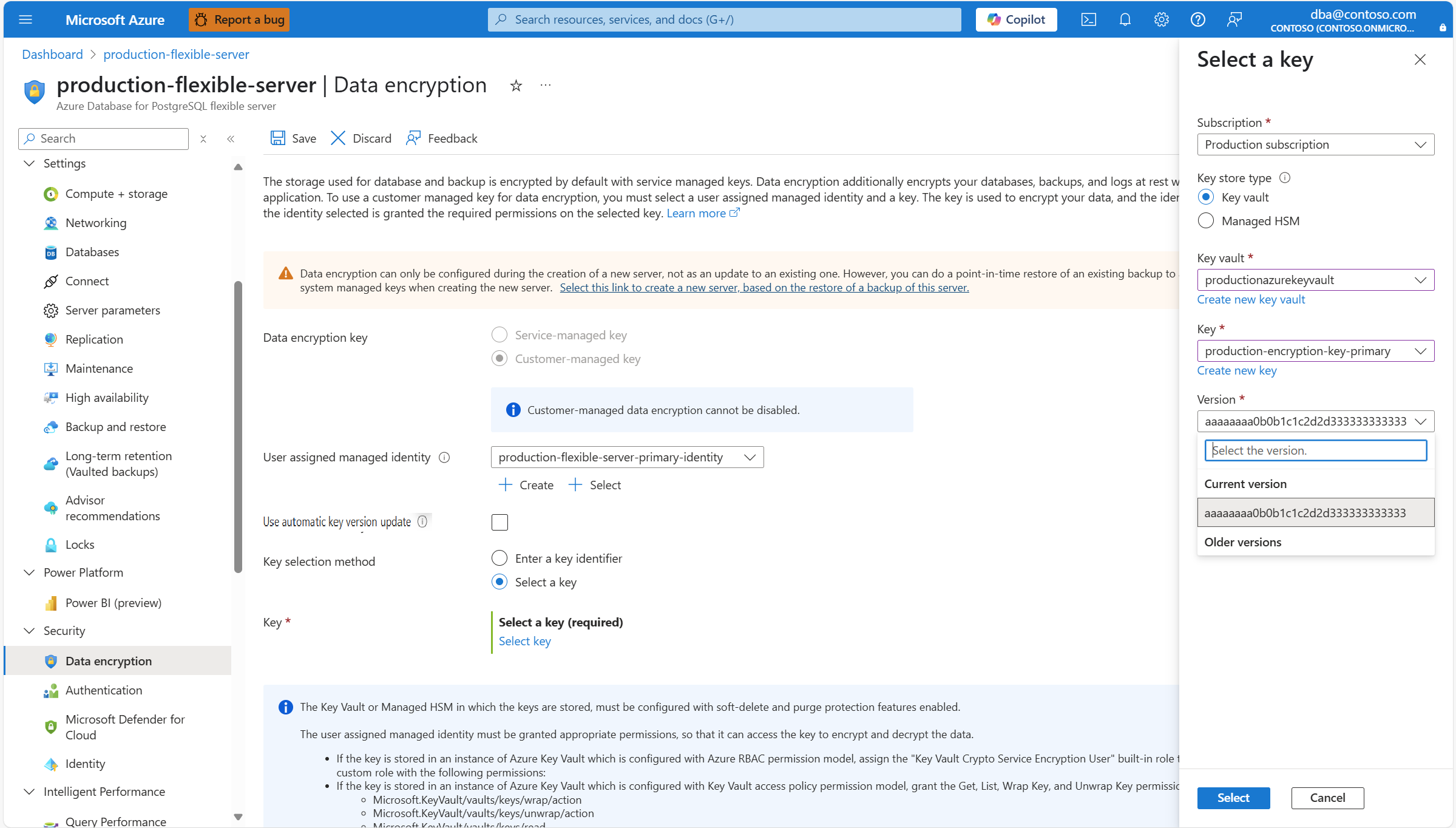
Select Select.
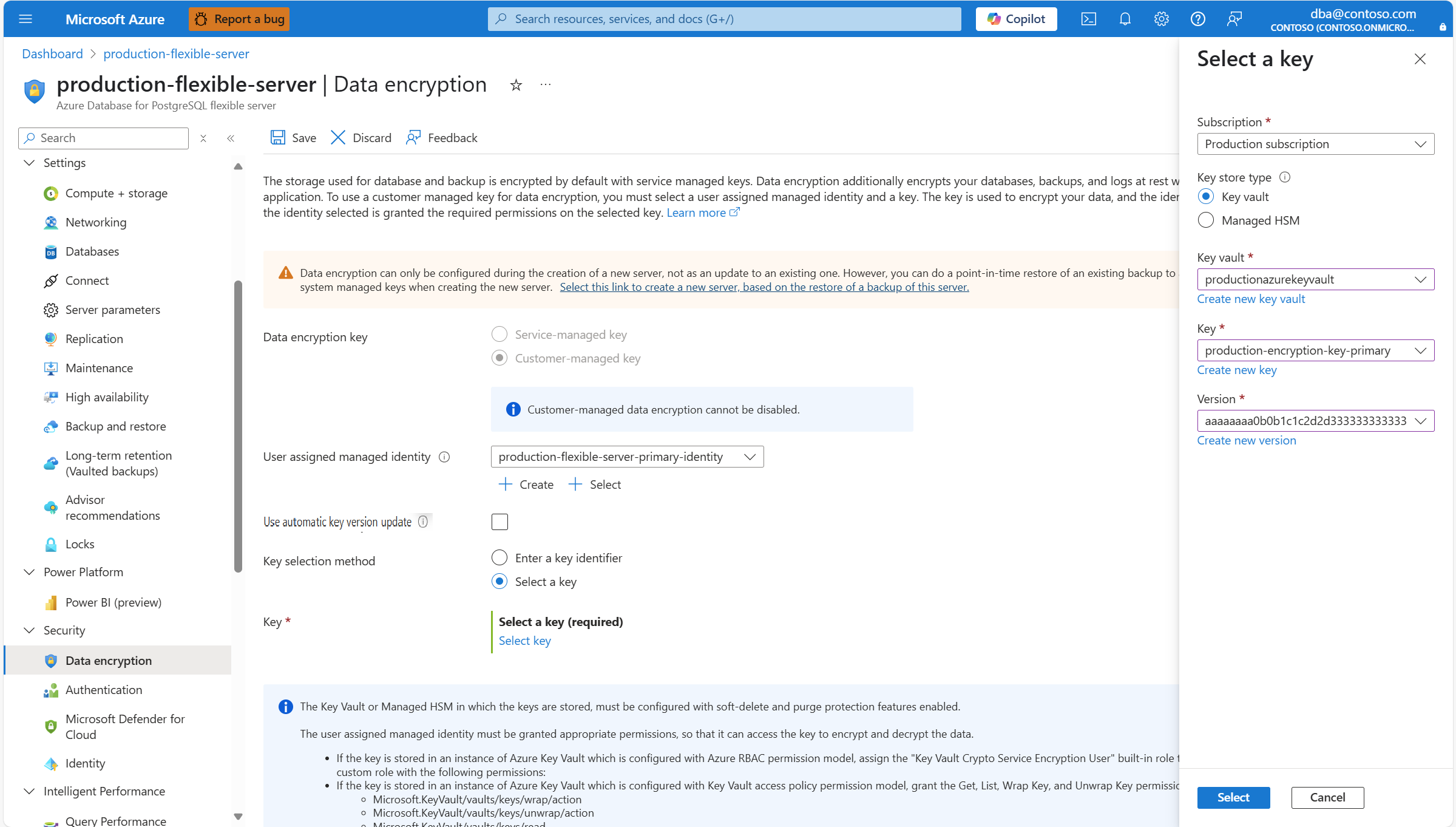
When you're satisfied with the changes, select Save.