Note
Access to this page requires authorization. You can try signing in or changing directories.
Access to this page requires authorization. You can try changing directories.
Unpackaged distribution lets you ship a WinUI 3 app without MSIX — useful for enterprise scenarios where MSIX deployment isn't available, or for developers who prefer a traditional folder-based install.
Important
Review these limitations before you start. Unpackaged WinUI 3 apps have constraints that affect your distribution strategy:
- No single-file EXE — The Windows App SDK runtime and WinUI 3 dependencies must exist as separate files. The .NET single-file publish feature (
PublishSingleFile) cannot bundle them into one executable. You will always distribute a folder of files (or wrap them in a traditional installer such as WiX or Inno Setup). - Runtime dependency — The Windows App SDK runtime must be present on the user's machine. You must either bundle the runtime installer with your app, or use self-contained deployment (which significantly increases output size). See Deploying the Windows App SDK runtime below.
- No package identity — Without a package manifest, your app cannot use manifest-based Windows features: no automatic updates via App Installer or Store, no background task registration, and no file type associations or Start menu tile customization via package manifest. (Traditional Win32 mechanisms such as installer-written registry entries and shortcuts still work.)
- No MSIX/package-identity Store submission — This distribution model has no package identity; it is not eligible as an MSIX submission to the Microsoft Store. (You can submit a traditional installer to the Store via the MSI or EXE installer submission path, but that is a separate workflow from what this article describes.)
If these constraints are a concern, consider packaging your app (recommended for most apps) or packaging with external location to add package identity without a full MSIX conversion.
For details on all packaging options, see Advantages and disadvantages of packaging your app.
If you choose to unpackage a new or existing WinUI app, follow these steps:
In your .csproj file, find the first existing PropertyGroup element, which also contains OutputType, TargetFramework, and other properties.
- Add the
WindowsPackageTypeproject property to this PropertyGroup element. Set its value toNone.
<Project ...>
  ...
  <PropertyGroup>
    <WindowsPackageType>None</WindowsPackageType><!-- add this -->
    <OutputType>WinExe</OutputType>
    <TargetFramework>net8.0-windows10.0.19041.0</TargetFramework>
    ...
  </PropertyGroup>
  ...
</Project>
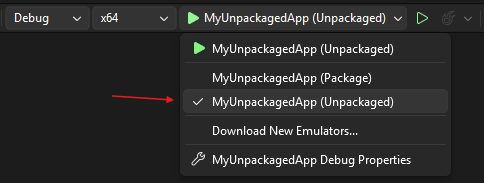
To start the app from Visual Studio (either Debugging or Without Debugging), select the Unpackaged launch profile from the Start drop-down. If the Package profile is selected, then you'll see a deployment error in Visual Studio. This step isn't necessary if you start the application (.exe) from the command line or from Windows File Explorer.

The bootstrapper API
Setting the <WindowsPackageType>None</WindowsPackageType> project property causes the auto-initializer to locate and load a version of the Windows App SDK that's most appropriate for your app.
If you have advanced needs (such as custom error handling, or to load a specific version of the Windows App SDK), then you can instead call the bootstrapper API explicitly. For more info, see Use the Windows App SDK runtime for apps packaged with external location or unpackaged, and Tutorial: Use the bootstrapper API in an app packaged with external location or unpackaged that uses the Windows App SDK.
For more info about the bootstrapper, see Deployment architecture and overview for framework-dependent apps.
Deploying the Windows App SDK runtime
Unpackaged WinUI 3 apps depend on the Windows App SDK runtime being installed on the user's machine. You have two options for ensuring the runtime is present:
Option 1: Windows App SDK runtime installer (.exe) (recommended)
Include the Windows App SDK runtime installer alongside your app. The runtime installer is a redistributable .exe that installs the required Windows App SDK runtime packages. Download it from the Windows App SDK releases page and bundle it with your own installer or setup script. For full guidance, see Use the Windows App SDK runtime for apps packaged with external location or unpackaged.
Users must run the runtime installer once. Subsequent app updates don't require reinstallation of the runtime unless the required Windows App SDK version changes.
Option 2: Self-contained deployment
Set <WindowsAppSDKSelfContained>true</WindowsAppSDKSelfContained> in your project file to bundle the Windows App SDK runtime directly into your app's output folder. This removes the runtime dependency — users don't need to install anything separately.
<PropertyGroup>
  <WindowsPackageType>None</WindowsPackageType>
  <WindowsAppSDKSelfContained>true</WindowsAppSDKSelfContained>
</PropertyGroup>
The trade-off: your output folder is significantly larger (the full runtime is included), and each app update carries the full runtime payload. Use this option for simple distribution scenarios or when you can't control what's installed on the target machine.
→ Deploy unpackaged apps that use the Windows App SDK for the complete runtime deployment reference.
Single-file EXE limitation
Important
Unpackaged WinUI 3 apps cannot be published as a single-file EXE. The Windows App SDK runtime and several WinUI 3 dependencies must exist as separate files — the .NET single-file publish feature cannot bundle them into one executable.
If a single-file distribution experience is important for your scenario, consider these alternatives:
- Use MSIX packaging — users get a single installer experience (App Installer handles all the files), and you get Store eligibility, package identity, and built-in updates
- Use a traditional installer (WiX, Inno Setup) — wrap the output folder in a single EXE installer that extracts and installs all required files transparently
- Use a different framework — WPF and WinForms apps with
dotnet publish --self-contained -p:PublishSingleFile=truecan produce a single-file EXE, though some native dependencies may still be extracted at runtime
Distribution considerations for unpackaged apps
Unpackaged WinUI 3 apps lack package identity, which means they cannot access certain Windows features:
- No automatic update via App Installer or Windows Store
- No background task registration via package manifest
- No file type associations or protocol handlers via package manifest
- No Start menu tile customization via package manifest
If you need these features, consider packaging with external location as a middle path that adds package identity without requiring full MSIX conversion.
→ Publish your first Windows app for a full overview of distribution options for WinUI 3 and other Windows app frameworks.
Collaborate with us on GitHub
The source for this content can be found on GitHub, where you can also create and review issues and pull requests. For more information, see our contributor guide.

Windows developer